
This section explains how to configure password reset for Azure Entra ID accounts in Sectona PAM. It provides the required configuration to securely reset and manage user passwords in Azure Entra ID.
Configure App Registration in Azure
-
Register a new application in App registration.
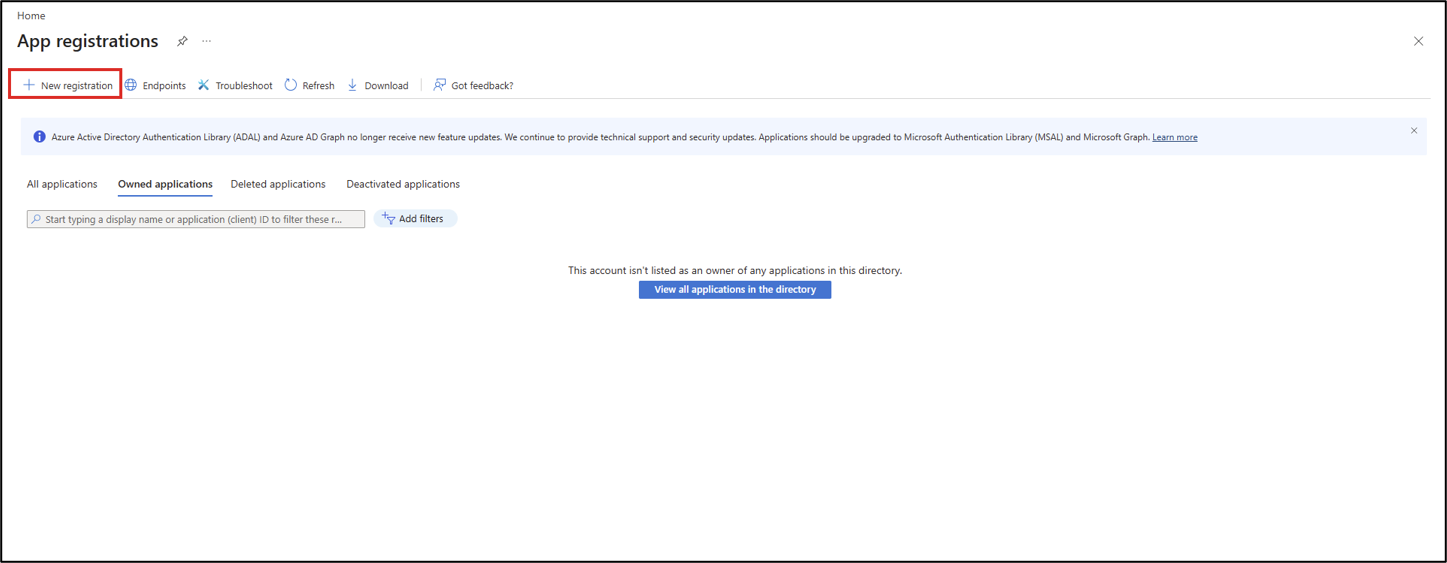
-
Enter an application Name, select Accounts type (Single tenant only), and click Register to create the application.
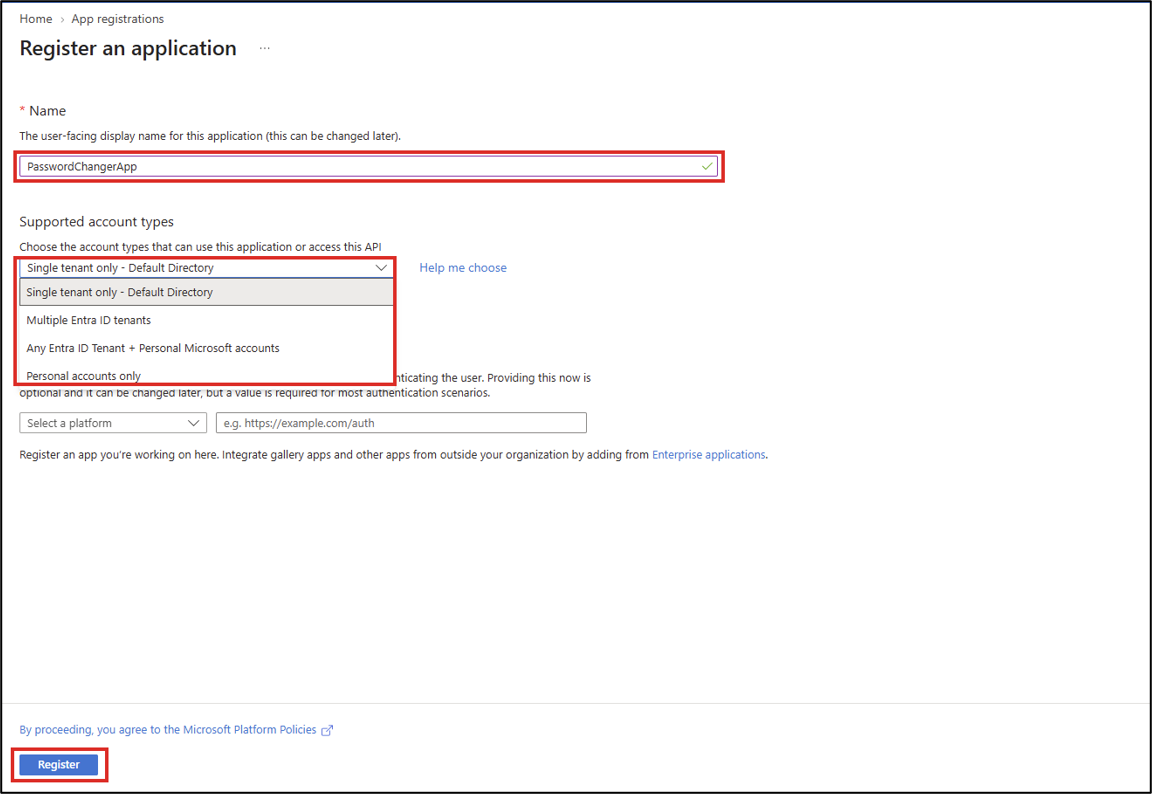
If the application must reset user passwords across multiple tenants, create a separate app registration in each tenant.
-
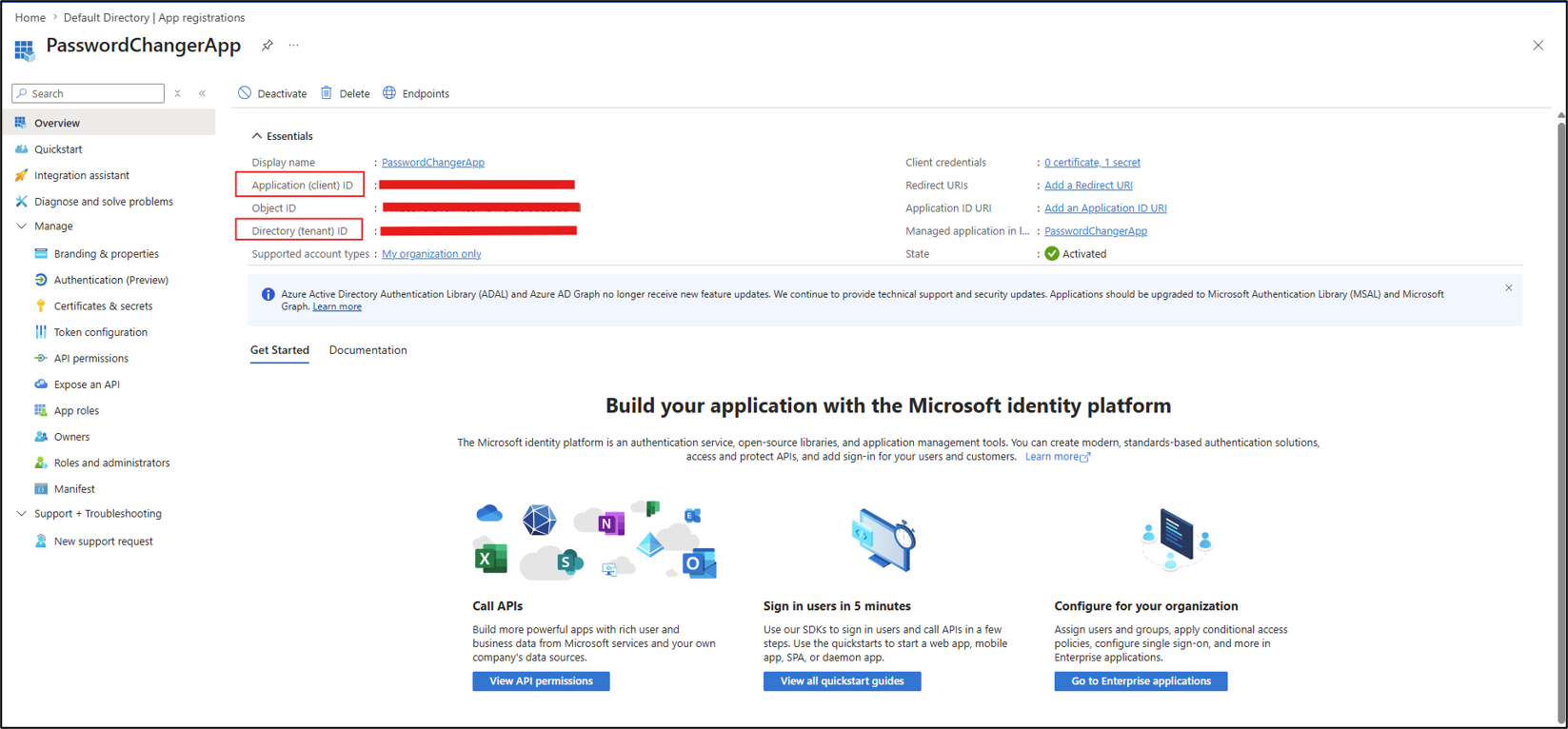
The application is created successfully.
-
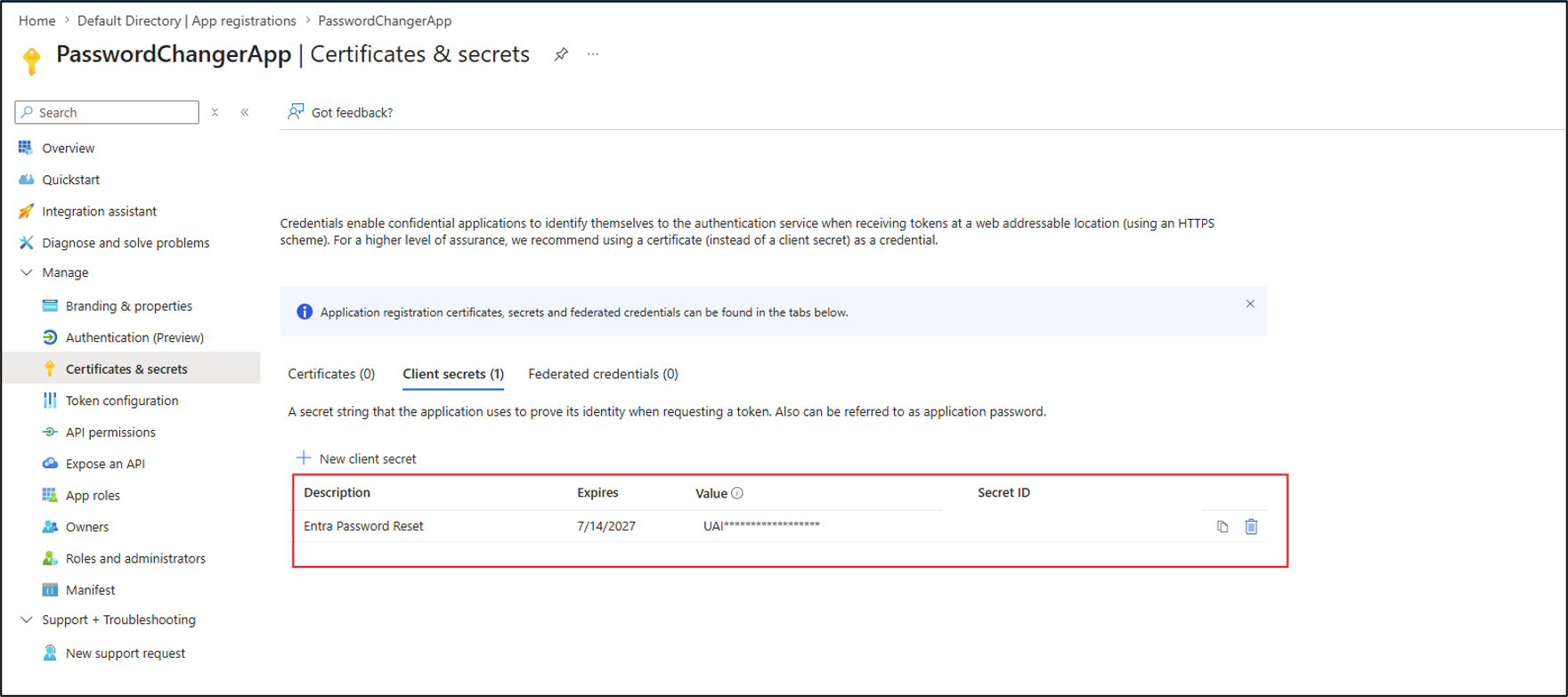
Create a client secret for the application registration and securely store its Secret value.
Configure API Permissions for the Application registration
Method 1: Configure API Permissions for All Entra ID Users
-
Go to Password Reset Application → Manage → API permissions.
-
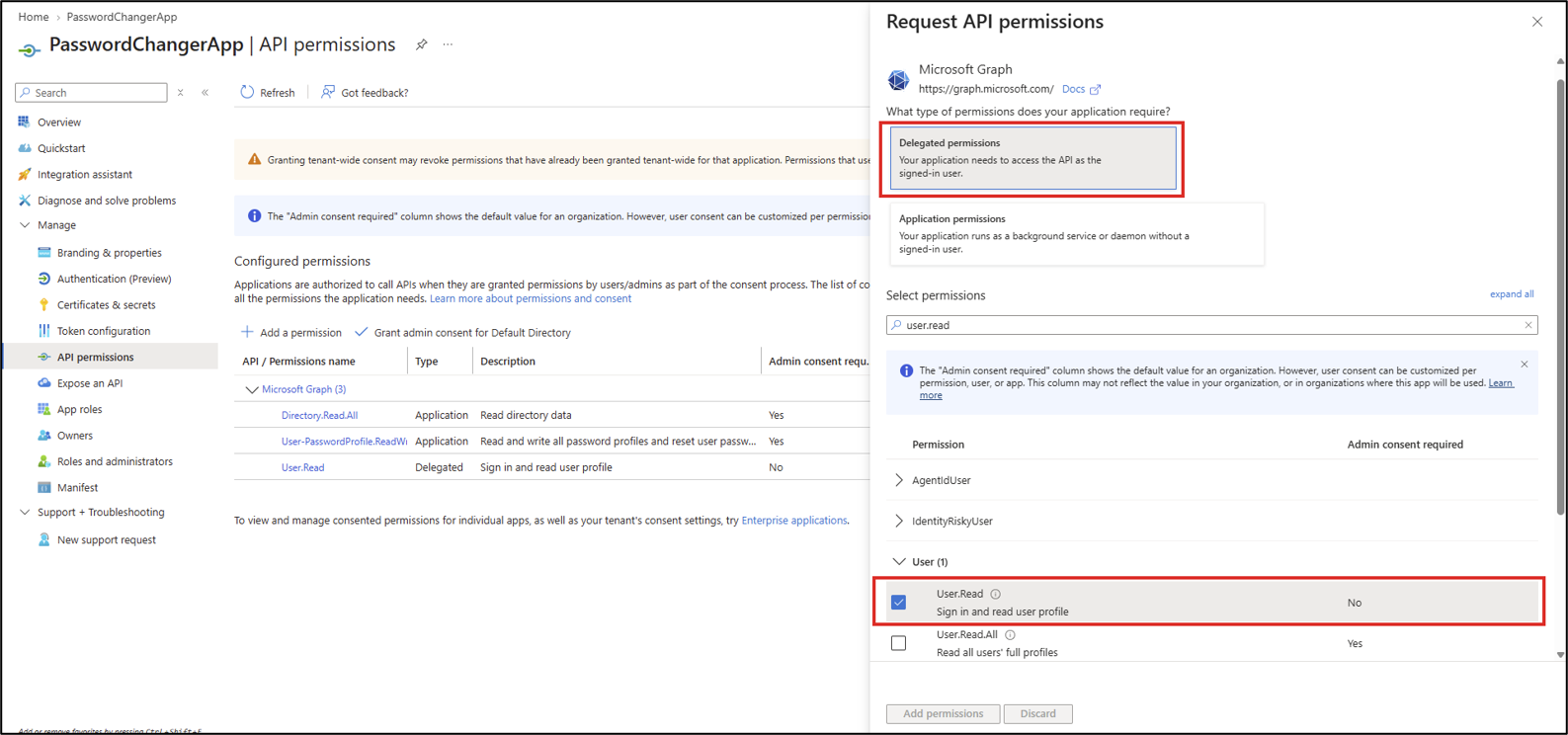
Click Add a permission → Microsoft Graph → Delegated permissions.
-
Select User.Read and add the permission.
-
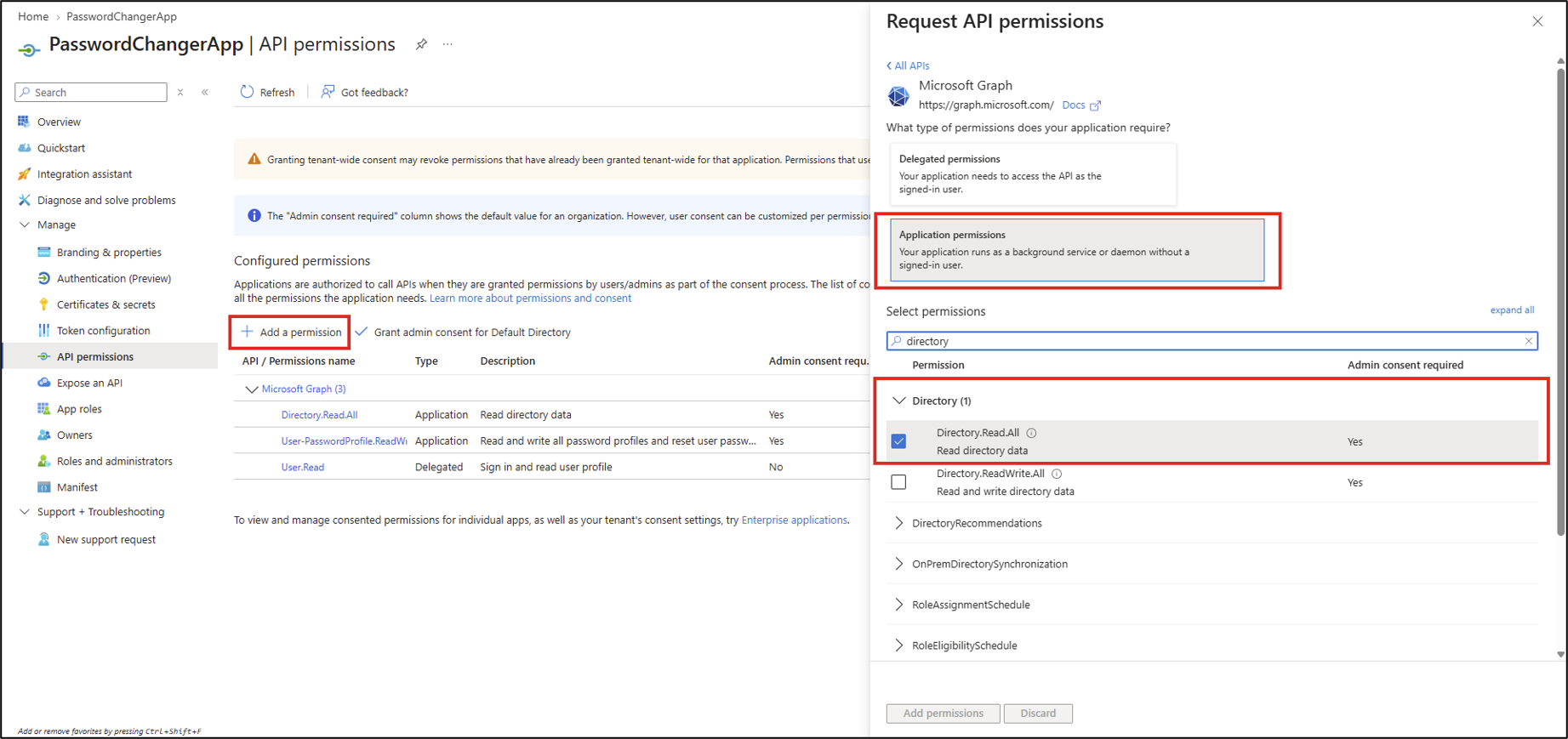
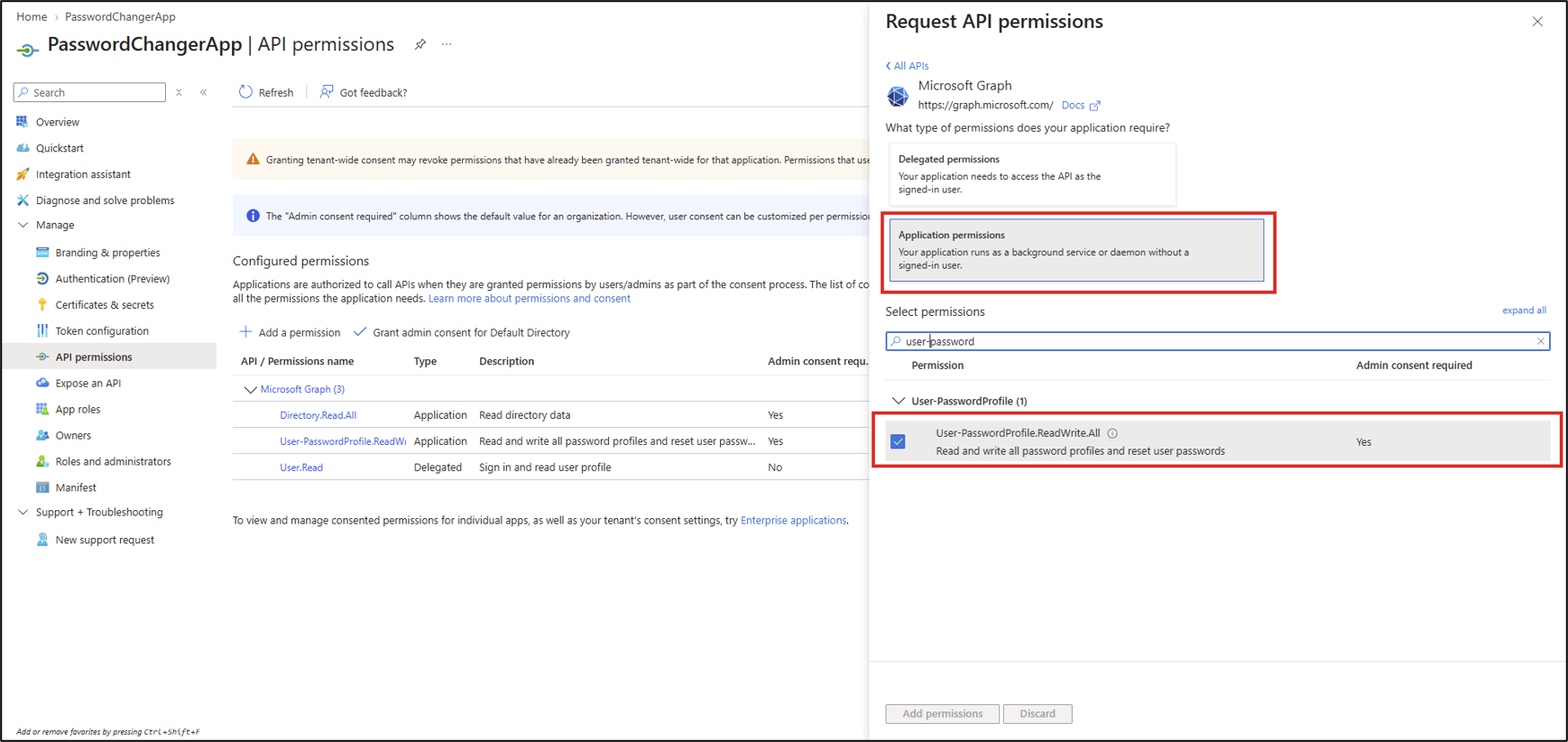
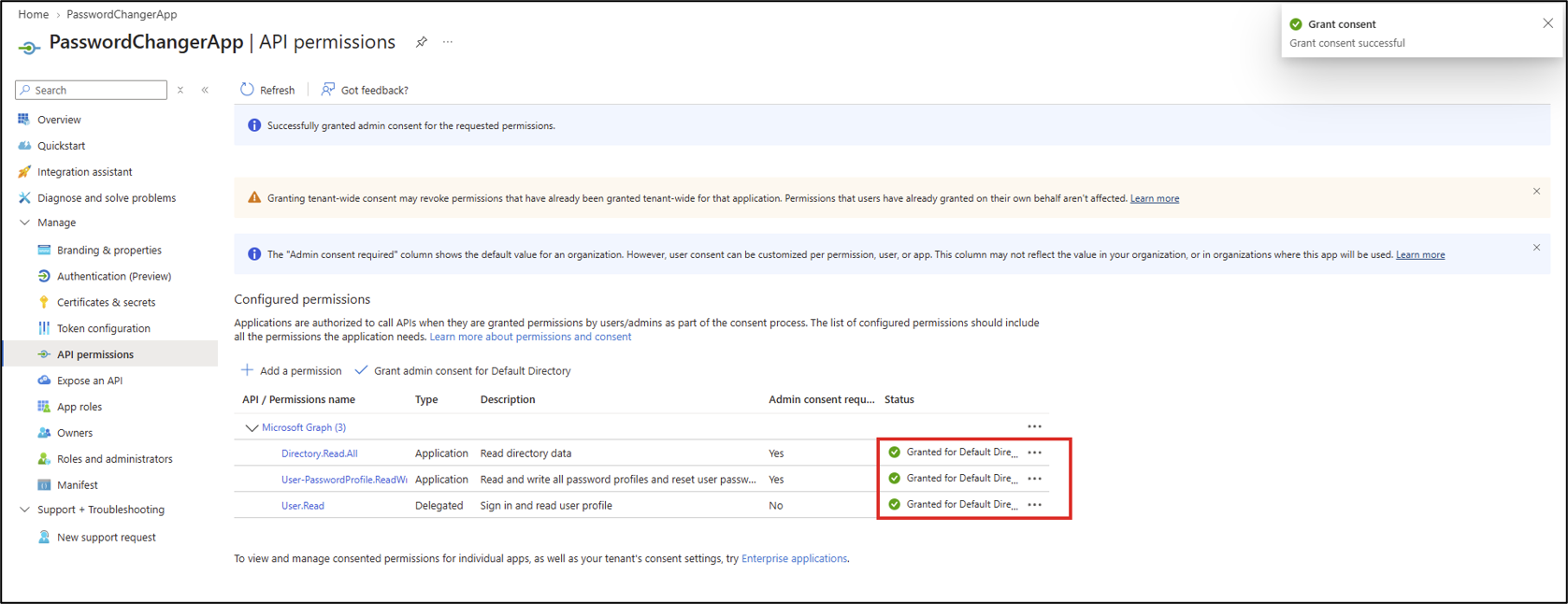
Click Add a permission → Microsoft Graph → Application permissions.
-
Select Directory.Read.All and User-PasswordProfile.ReadWrite.All.
-
Click Add permissions.
-
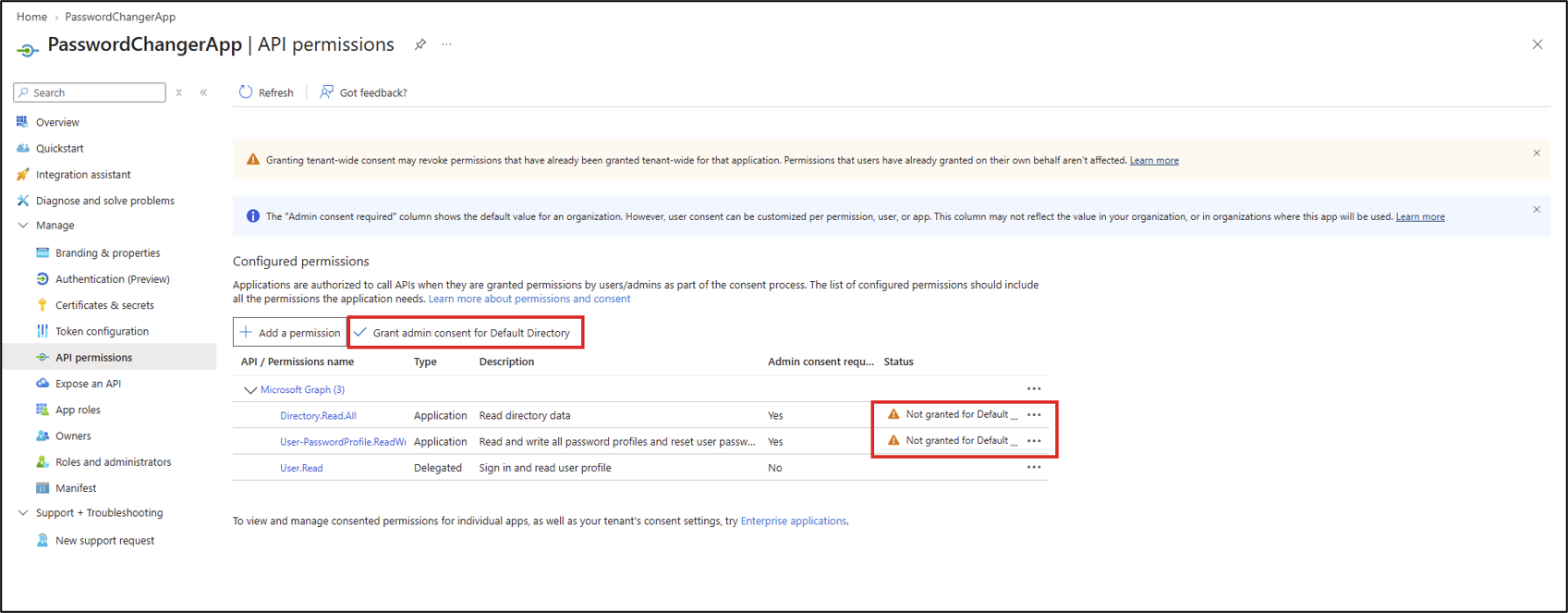
Click Grant admin consent for your Default Directory.
Method 2: Configure API Permissions for Selected Entra ID Users
-
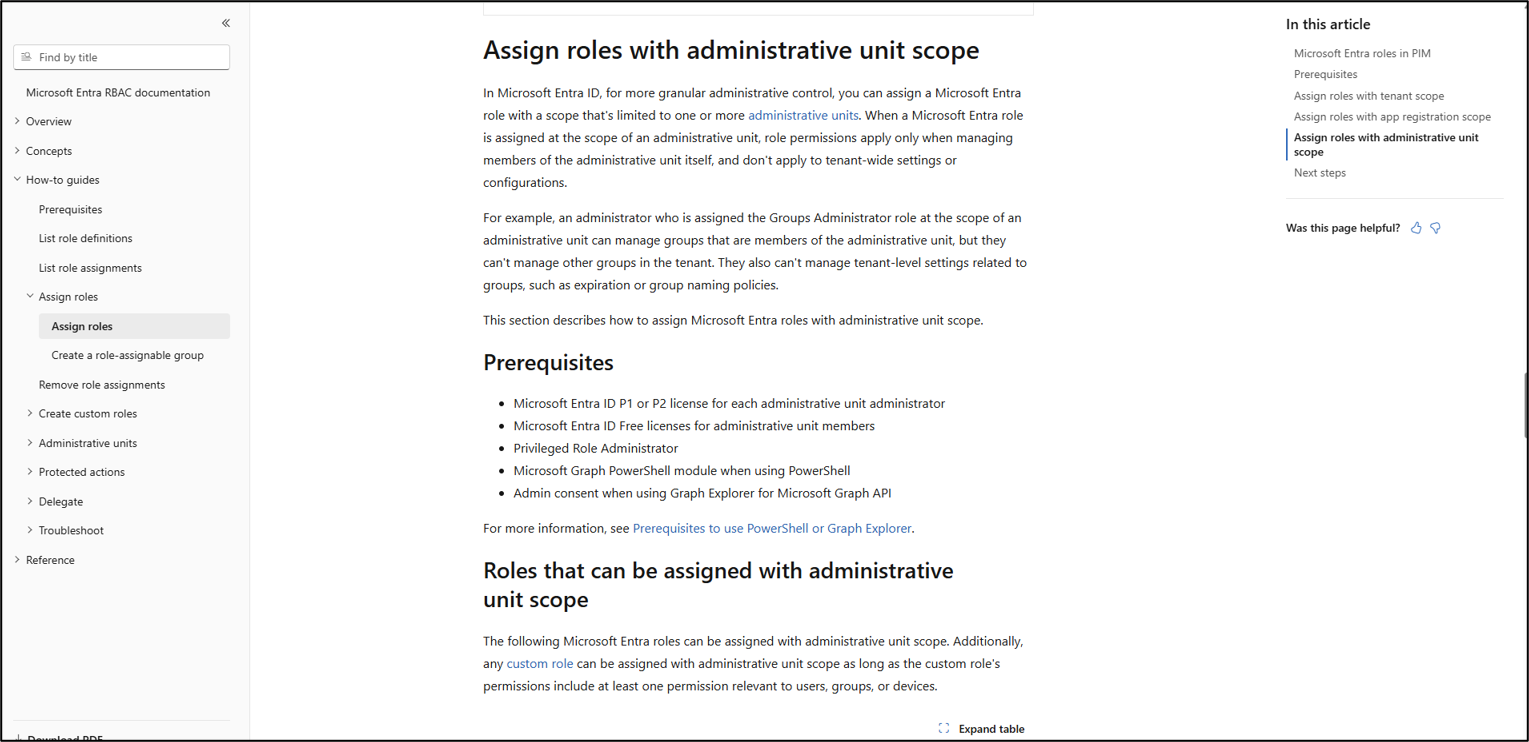
Microsoft Azure license required to access Entra ID configuration. refer the link for details https://learn.microsoft.com/en-us/entra/identity/role-based-access-control/manage-roles-portal?tabs=admin-center
-
We recommend Method 2 only for configuring password reset in Azure.
-
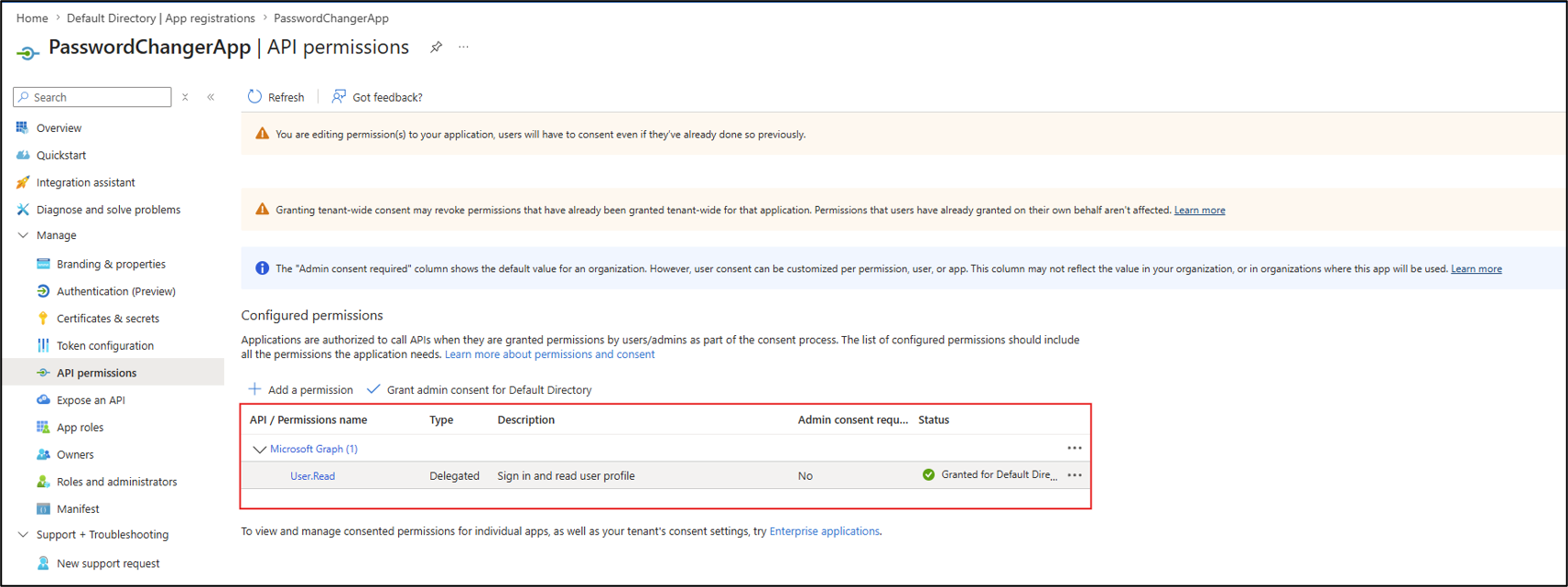
Verify that the required API permissions are configured for the application registration.
-
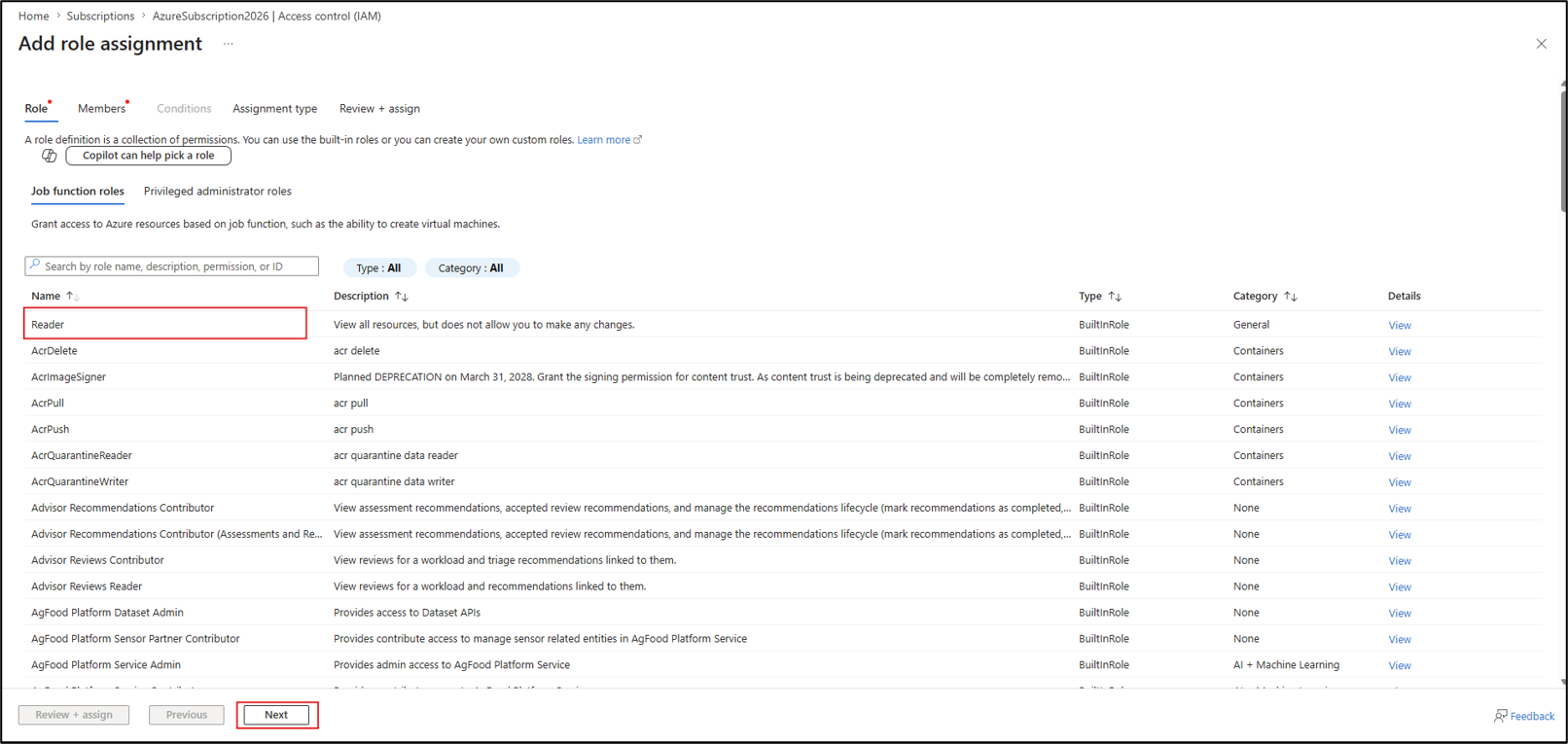
Go to Subscriptions and select the required subscription.
-
Open Access control (IAM) → Add → Add role assignment.
-
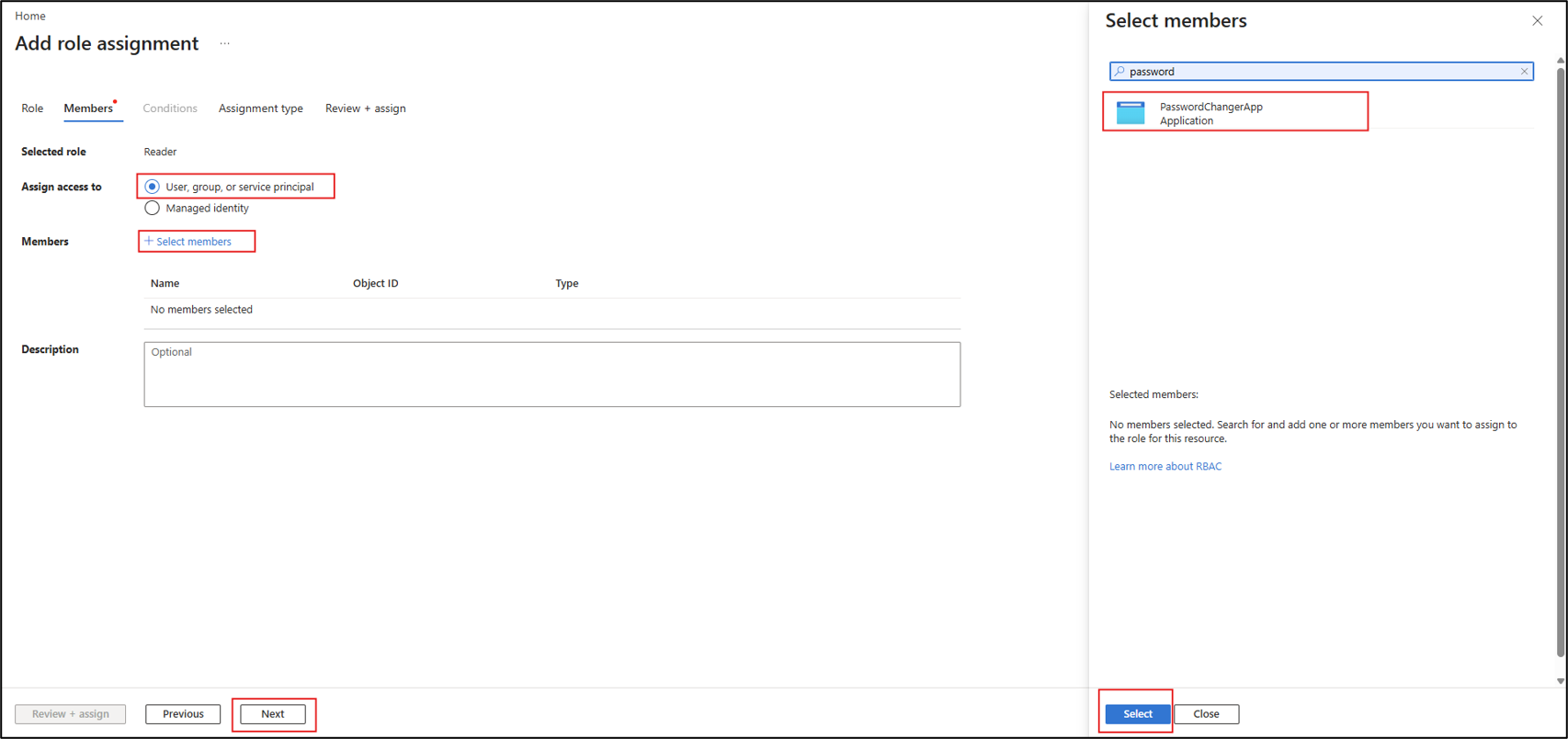
Select the Reader role and click Next.
-
Select Members, search for and select the required App registration, and click Next.
-
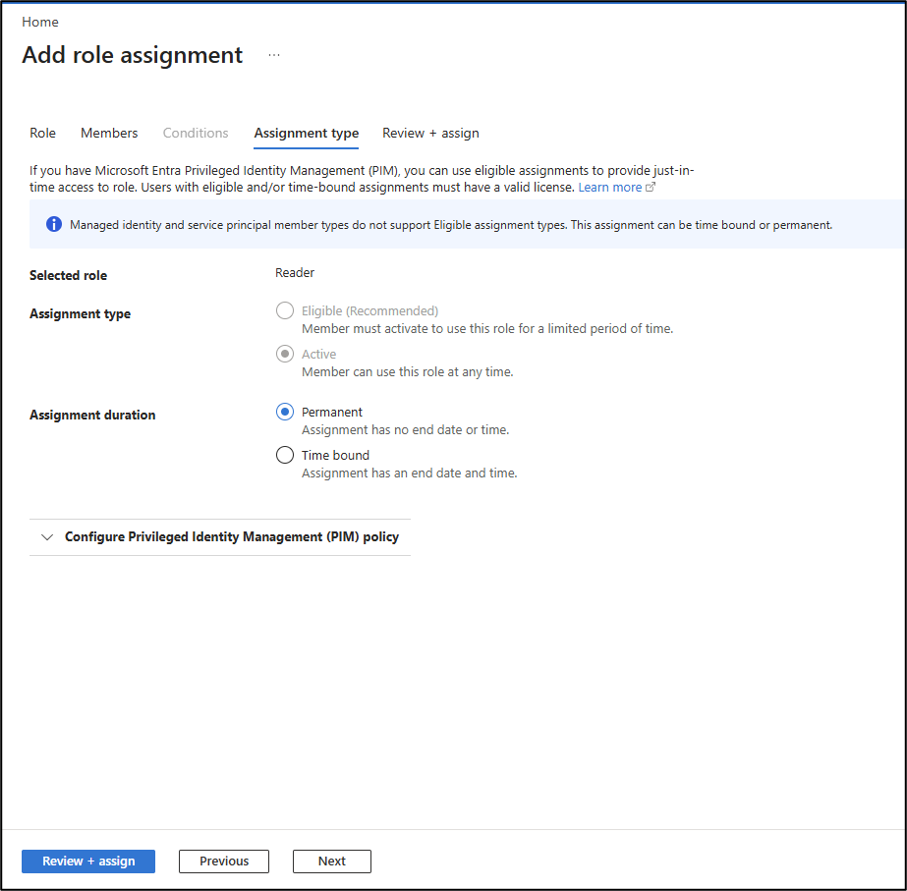
Select the required Assignment duration and click Next.
-
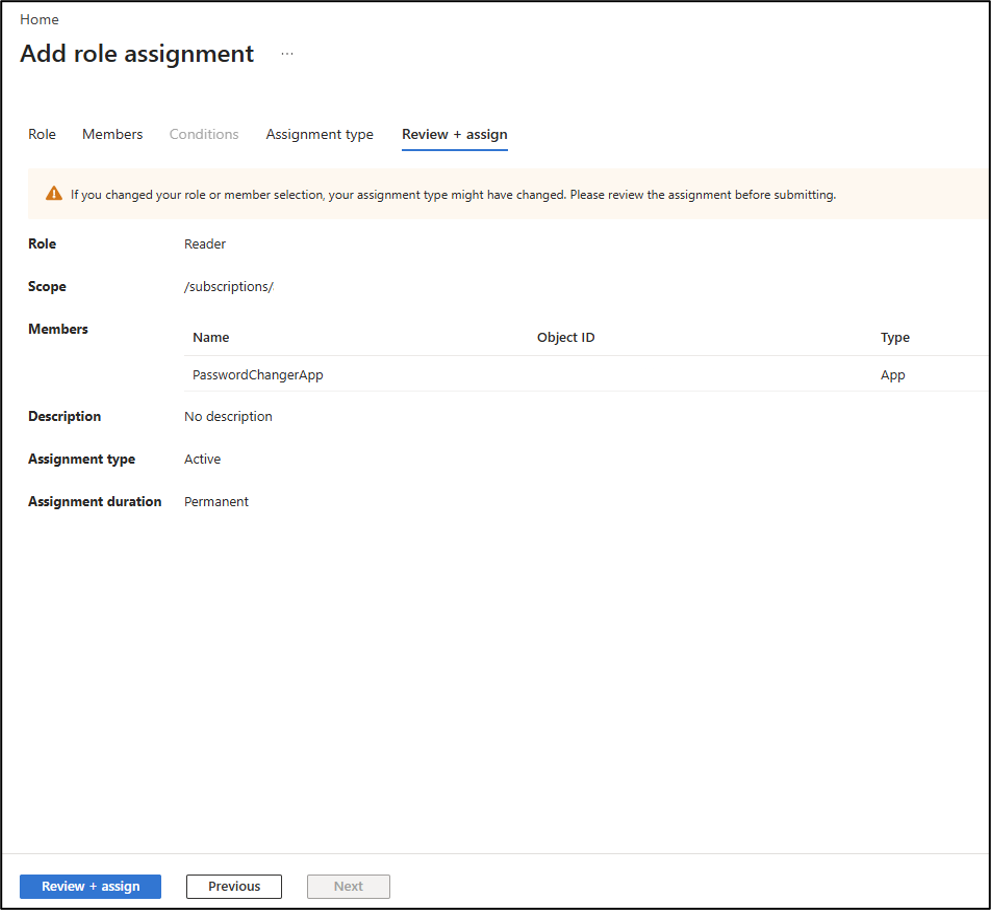
Review the role assignment details and click Review + assign.
-
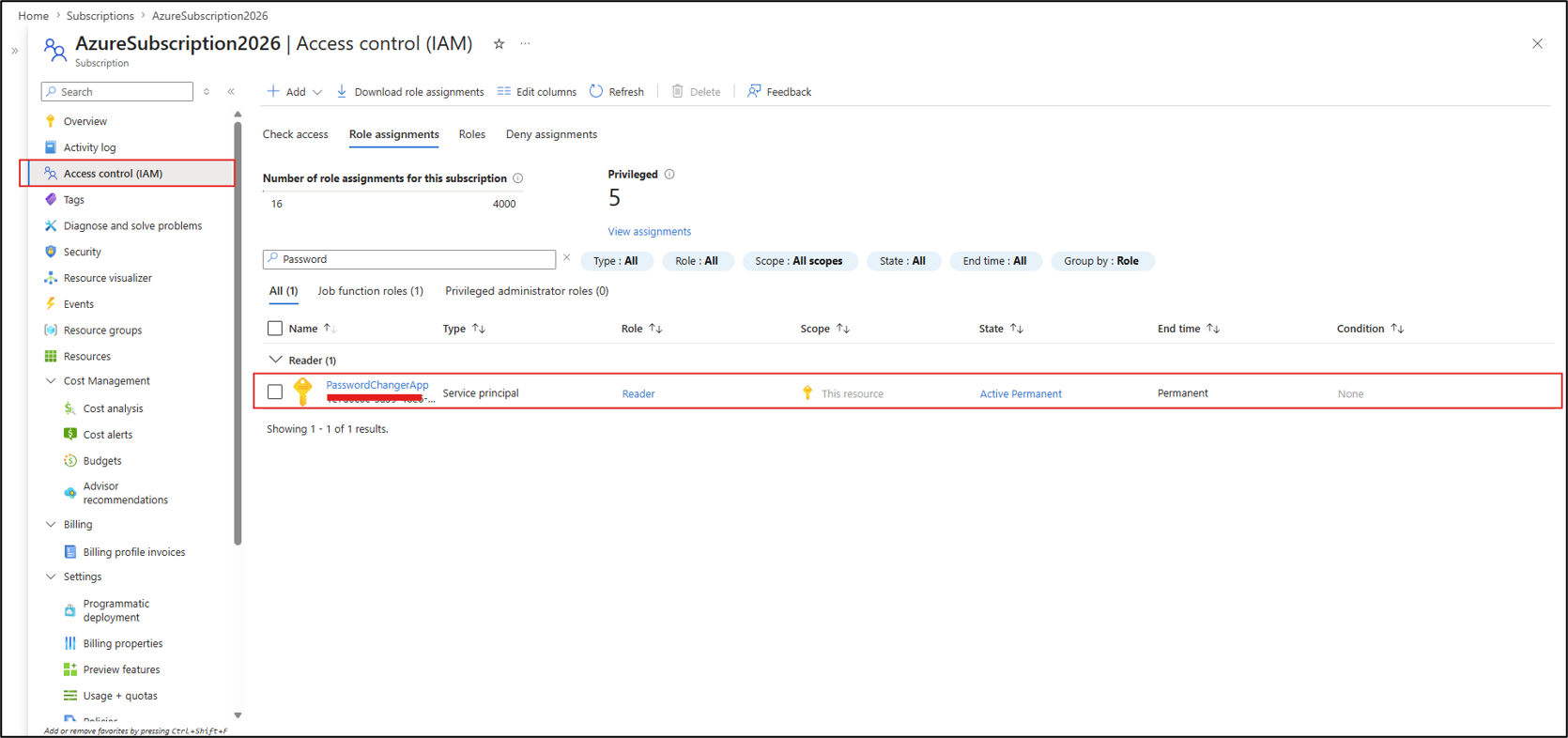
Go to Access control (IAM) → Role assignments and verify that the Reader role is assigned to the required App registration.
-
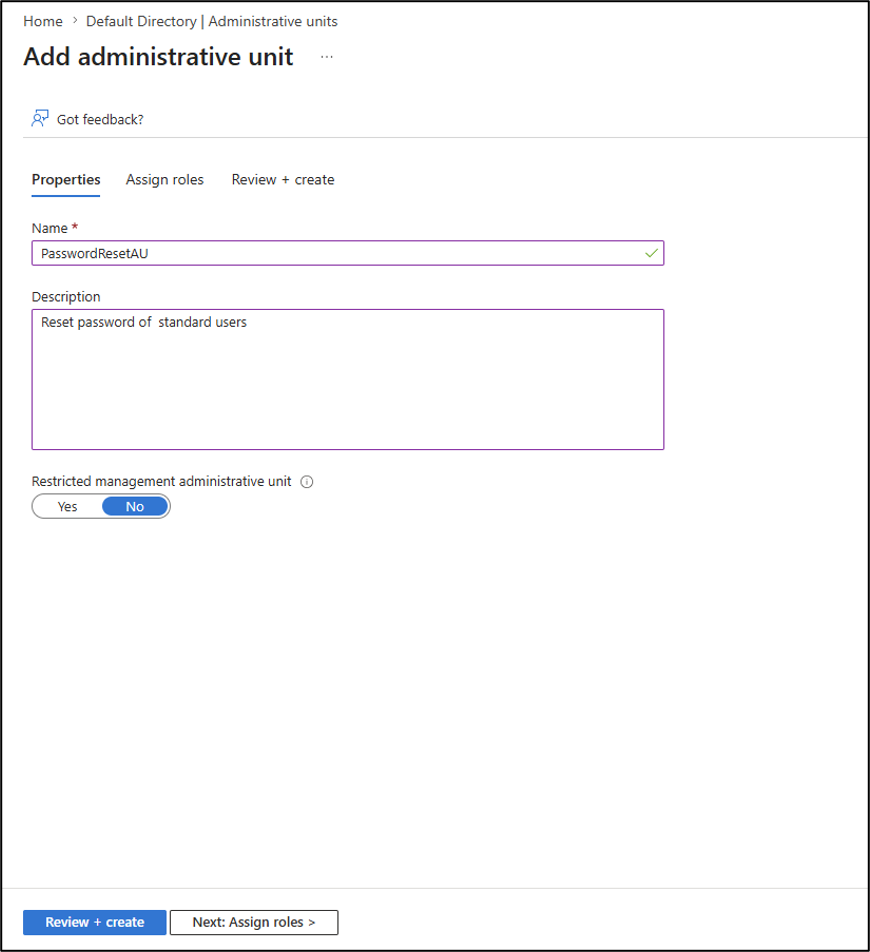
Create a new Administrative Unit in Microsoft Entra ID. Enter the Name and Description for the Administrative Unit, then click Next.
-
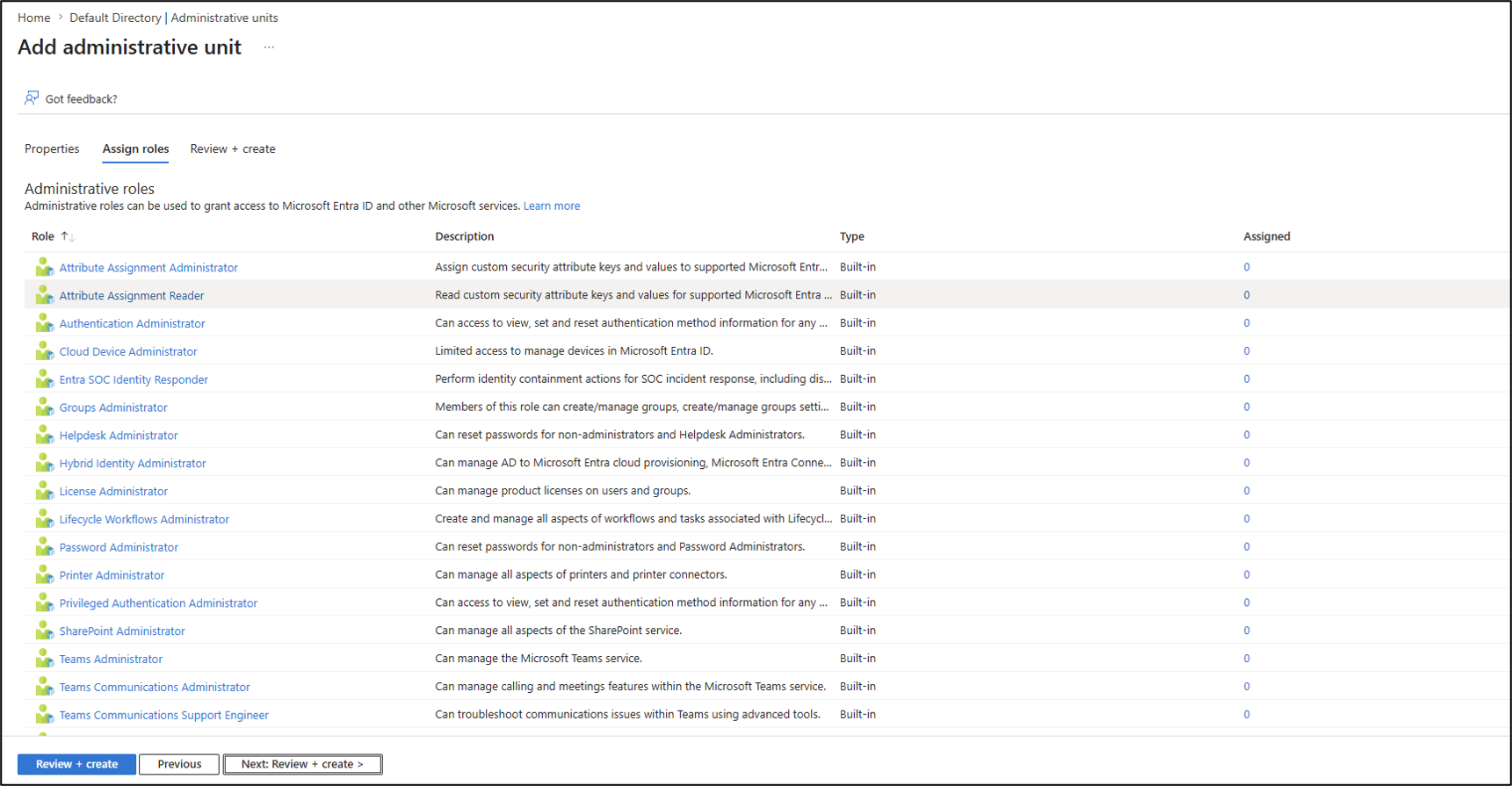
Review the Administrative Unit details and click Next: Review + create.
-
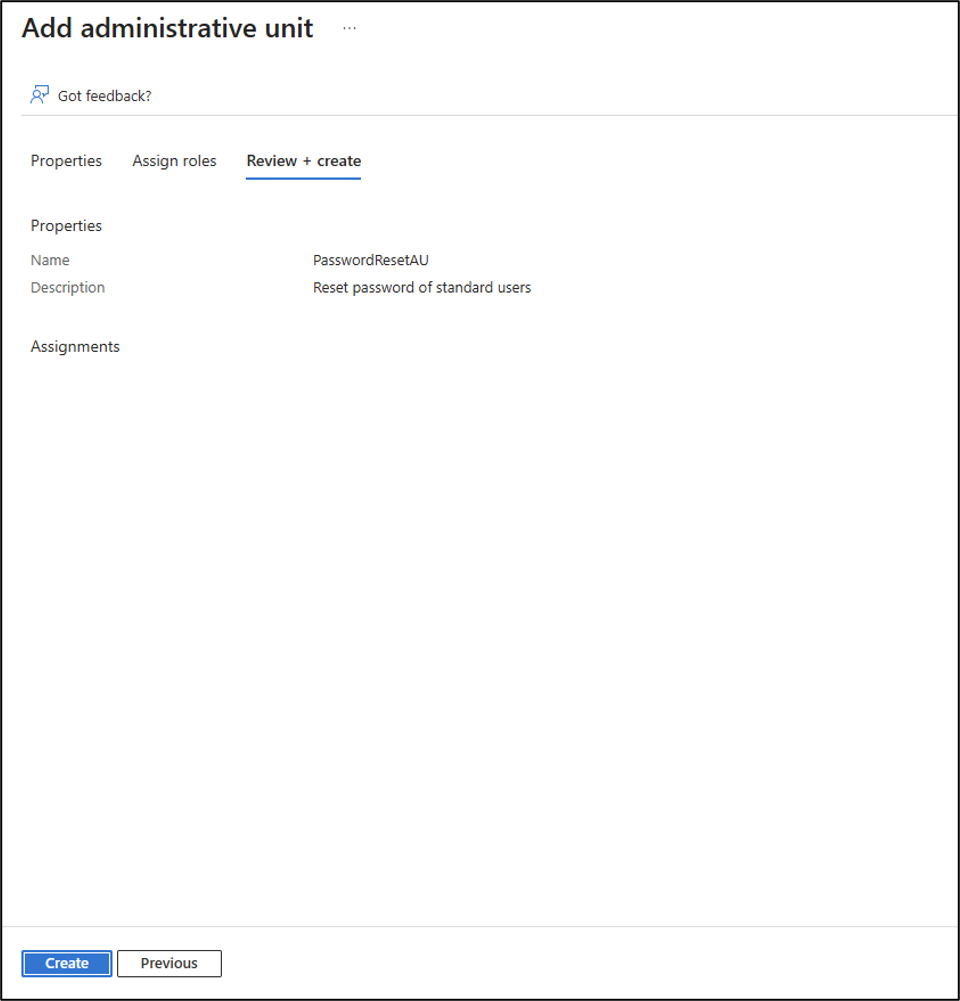
Review the Administrative Unit details and click Review + create.
-
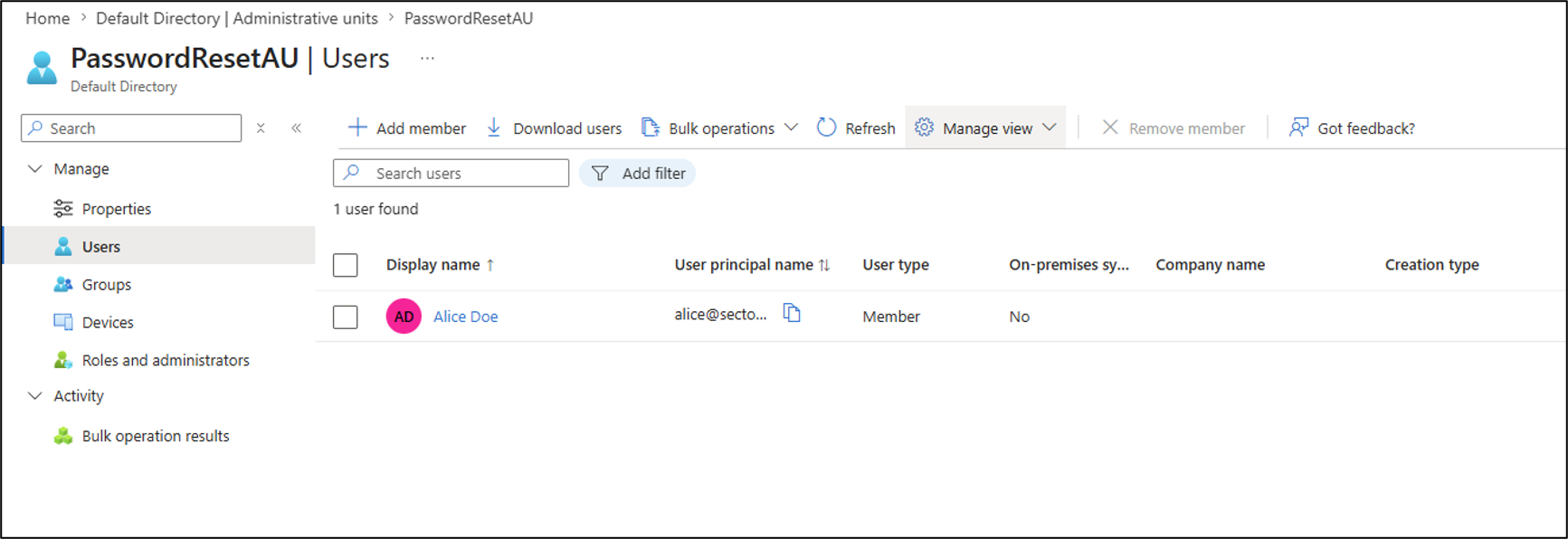
Open the Administrative Unit → Users → Add members.
-
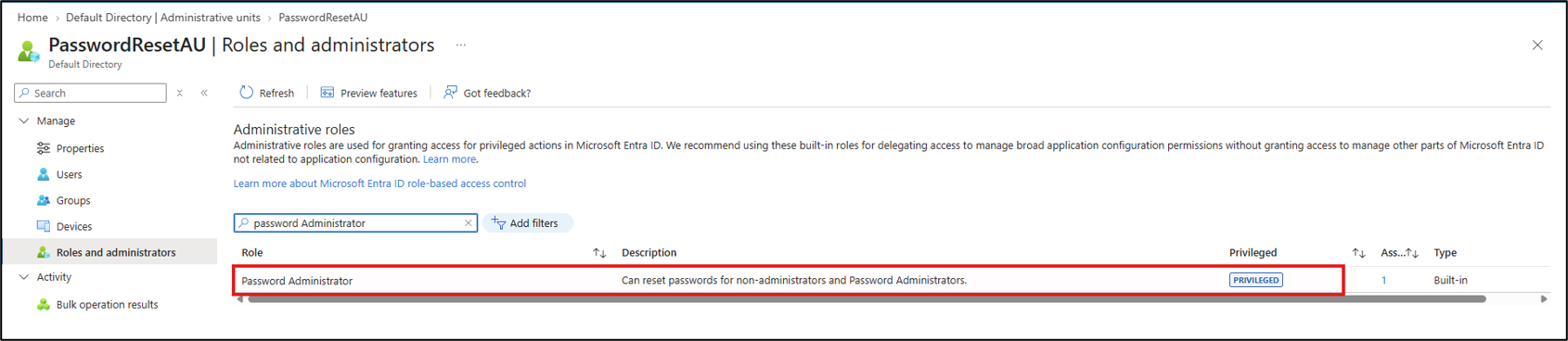
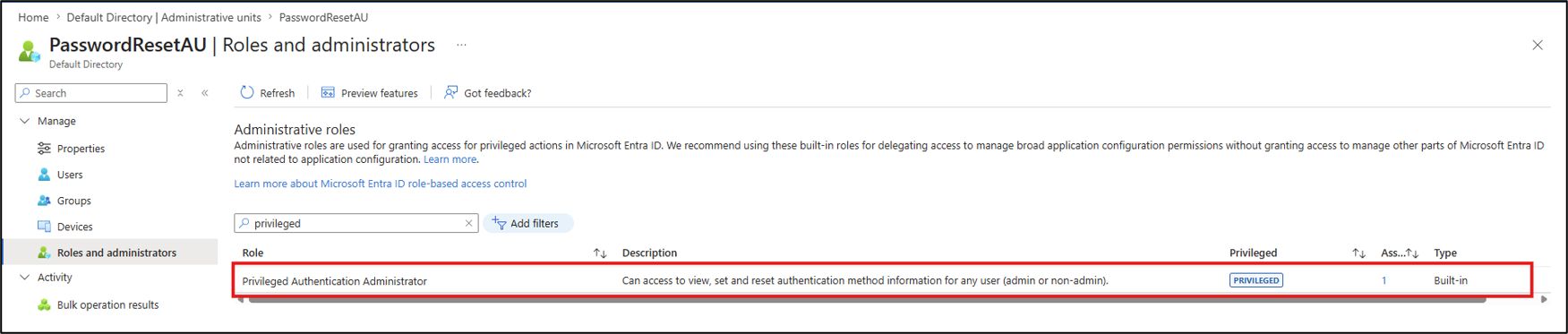
Go to Roles and administrators and select the role that matches your requirements.
-
Assign Password Administrator role - Reset passwords for Non-Administrators and Password Administrators.
-
Assign the Privileged Authentication Administrator role to reset passwords for Non-Administrator and Administrator accounts.
-
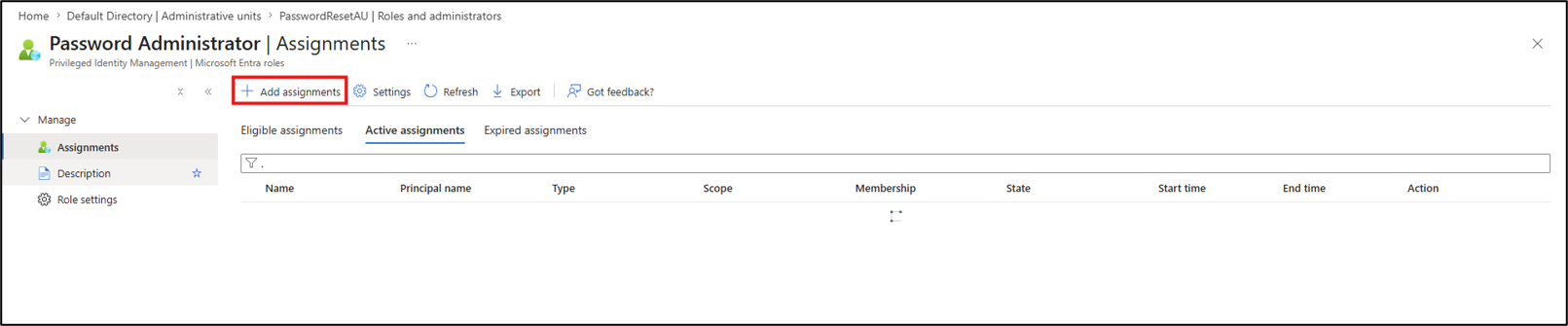
Click Add assignments.
-
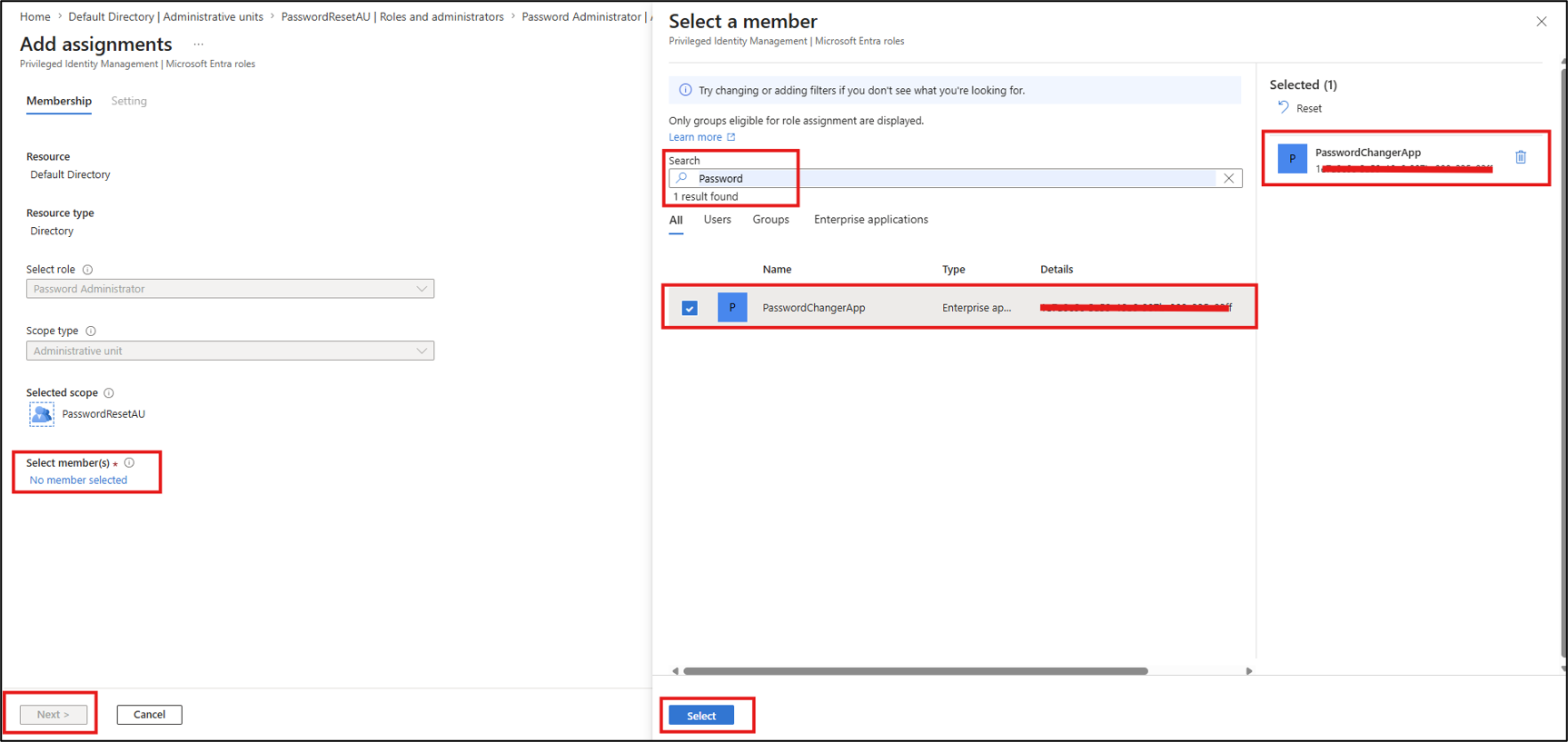
Search for the application, select it, and click Next.
-
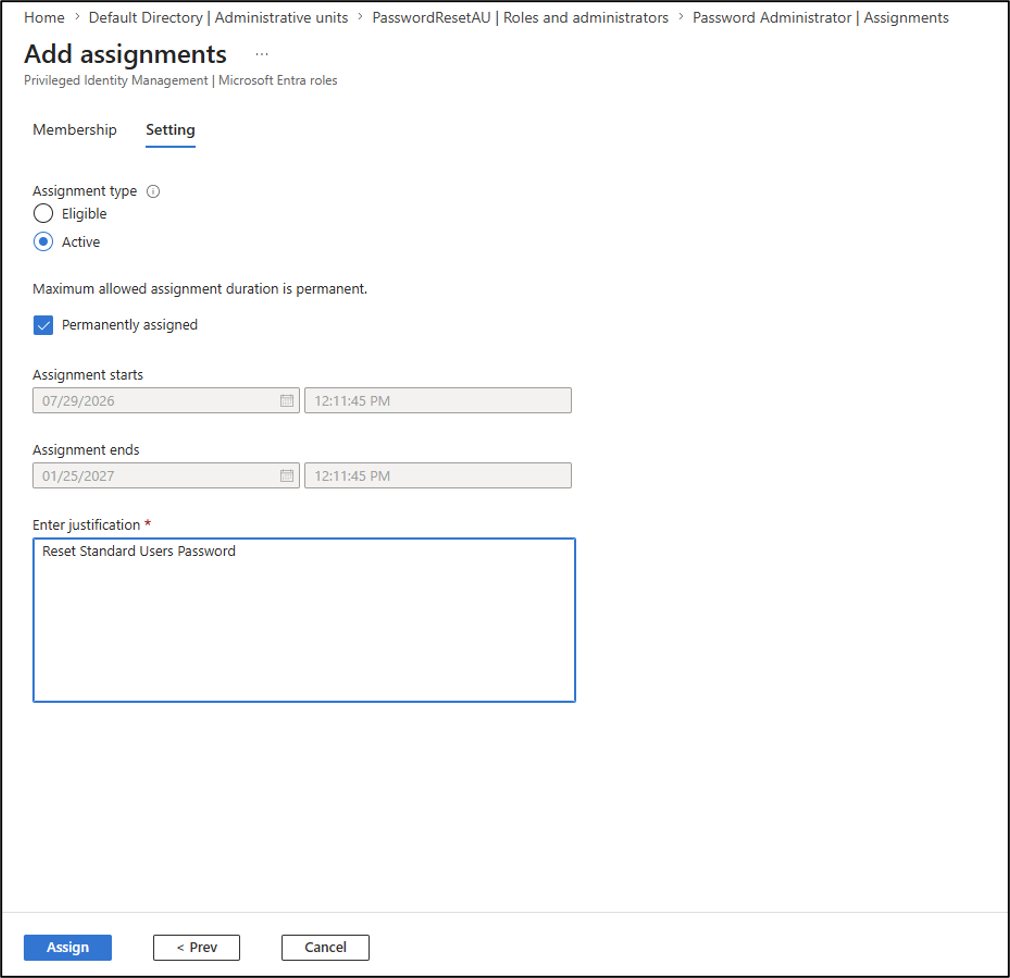
Review the assignment settings, enter the required justification, and click Assign to complete the role assignment.
Configure AD and Directory Store in PAM for Azure Entra ID
-
Open Platform Configuration.
-
Select Authentication -> AD & Directory Store -> Add Directory Store.
-
Select Azure as the Authentication Type.
-
Select Entra ID as the Directory Store Type.
-
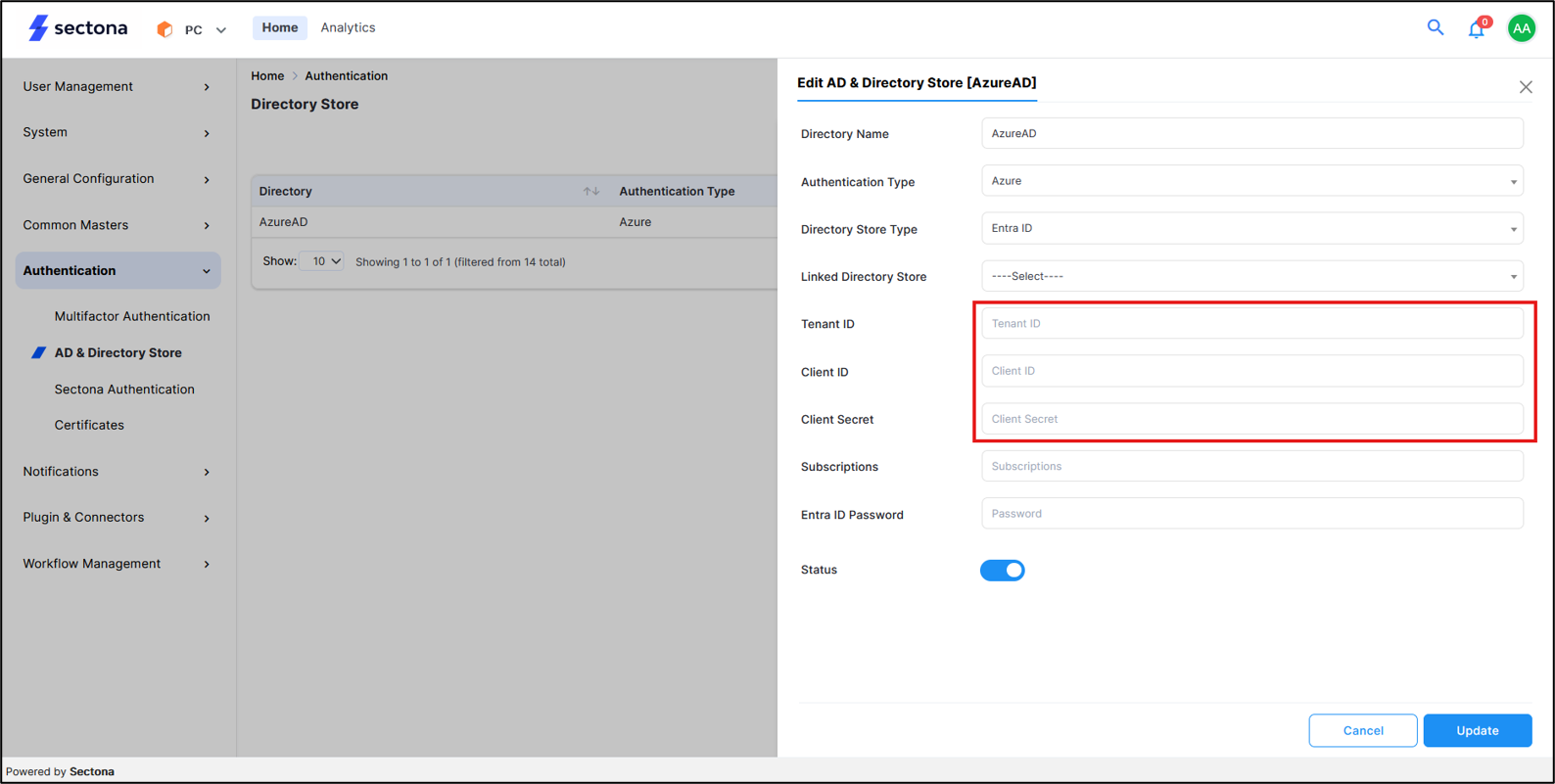
Enter the required details and select Save.
-
Configure the Application (Client) ID and Directory (Tenant) ID in the Directory Store Configuration in PAM using the values from the App Registration window.
-
Configure the Client Secret Value in the Directory Store in PAM using the value from Certificates & secrets.