
Sectona Technologies, with its core mission of Securing What Matters, provides a purpose-built access platform designed to protect privileged accounts and secure dynamic remote workforce access. Sectona Security Platform safeguards passwords, SSH keys, and other sensitive secrets within its dedicated vault, while enforcing endpoint isolation and full cross-platform session management to ensure maximum security and control.
To enhance real-time visibility and support centralized threat monitoring, Sectona Security Platform provides the capability to send real-time syslog events to industry-leading SIEM solutions. Integrating syslog events with IBM QRadar enables security teams to correlate privileged activity with broader organizational telemetry, detect anomalies faster, and improve incident response.
This document is the User Guide for the Sectona Security Platform QRadar DSM extension.
It is intended for organizations that use IBM Security QRadar in combination with the Sectona’s Privileged Access Management (PAM) Platform to enhance visibility, monitoring, and analysis of privileged user activity.
You will find this guide useful if your company’s security policies, compliance requirements, or operational processes require centralized logging and correlation of privileged access events within QRadar. By integrating real-time syslog events from the Sectona PAM, QRadar can provide enriched dashboards, and analytics related to:
-
Privileged account usage.
-
Password Management Activities.
-
Session initiation, completion and activity events.
-
Authentication, authorization, and policy enforcement.
-
Administrative and configuration activities.
This document explains how to configure, deploy, and validate the DSM extension to ensure seamless ingestion and parsing of Sectona PAM events, enabling your SOC teams to maintain continuous visibility into privileged access operations across your environment.
Product details and pre-requisites
|
Sectona Security Platform Version |
5.5.0.0 |
|
Release Date |
December 2025 |
|
QRadar Version |
7.3.3 and above |
IBM QRadar Integration
The following steps helps to configure Sectona Security Platform as a log source type with the help of Extension Management in IBM QRadar.
Pre-requisites
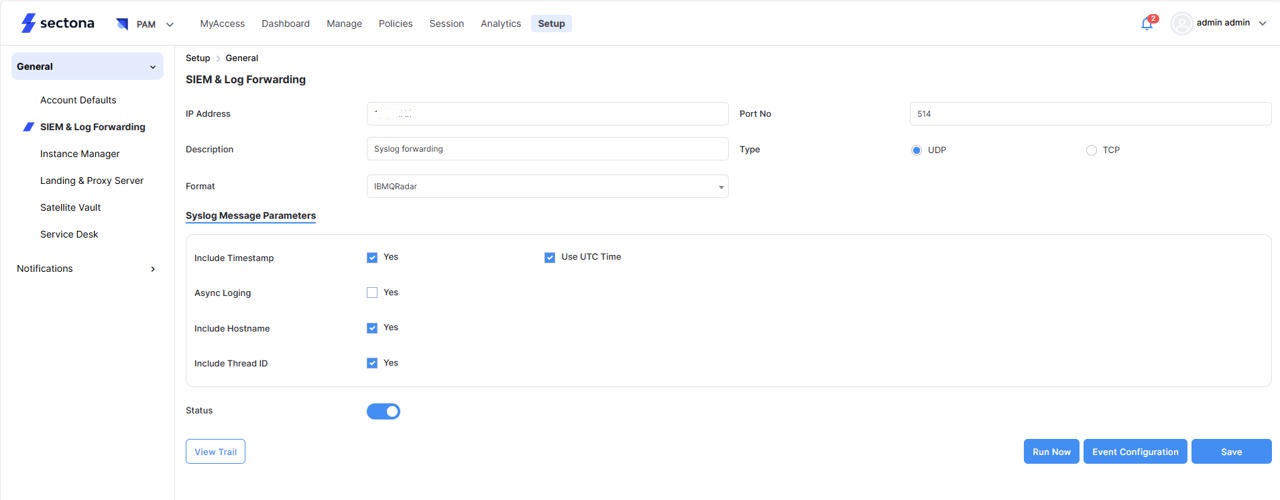
Make sure SIEM & Log Forwarding is configured in Sectona Security Platform.
Steps to configure SIEM & Log Forwarding in Sectona PAM to IBM QRadar
The steps below will help you configure Log Forwarding to IBM QRadar:
-
Login into Sectona Security Platform with Administrator role credentials
-
Navigate to PAM from product Navigator
-
Head to the Setup option, Under General, select SIEM & Log Forwarding from the sidebar.
-
IP Address: Provide the IP address of the IBM QRadar server.
-
Port No: Enter port no Configured on IBM QRadar for Sectona log collection.
-
Description: Enter the Description
-
Type: Select the protocol type of log forwarding TCP or UDP
-
Format: Select IBM QRadar from the drop-down.
-
Syslog Message Parameters: The default parameters are selected, you can modify as per your requirement
-
Enable the Active slider and click save to save the configuration
Installing Sectona Security Platform Extension:
-
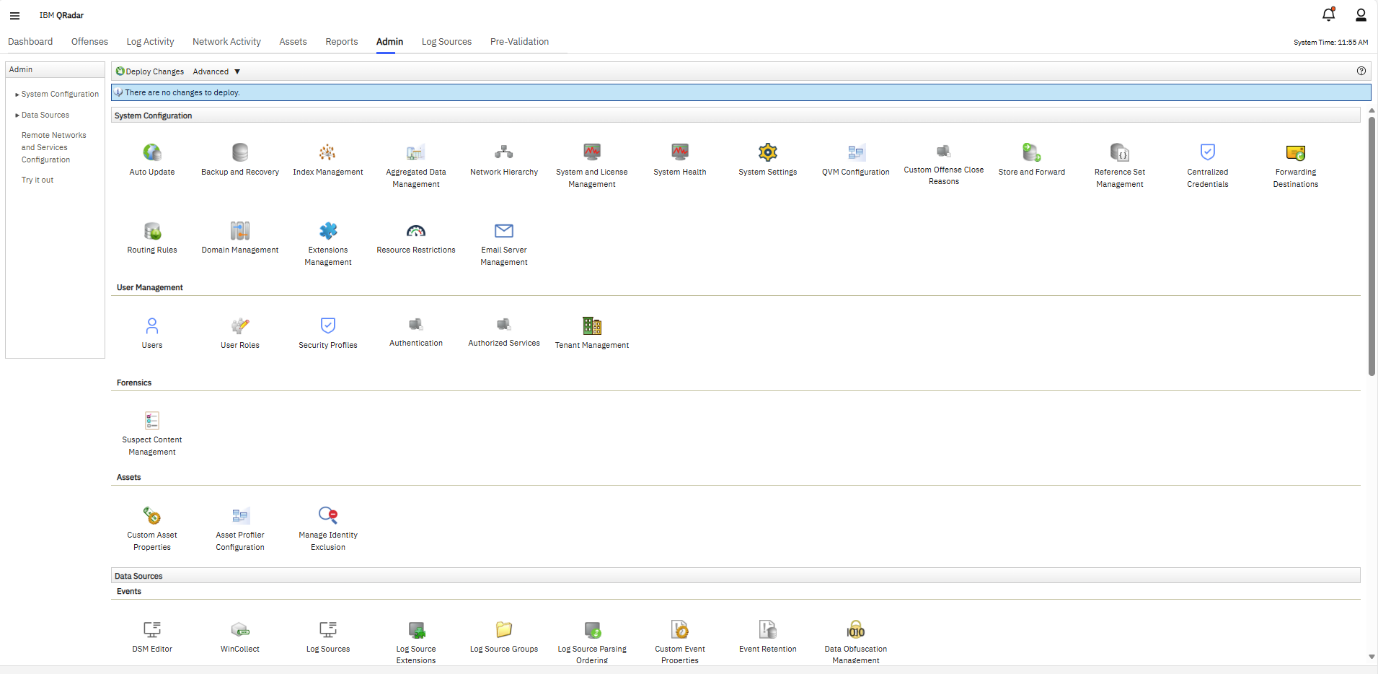
Login to IBM QRadar web console
-
Switch to the Admin tab in IBM QRadar Security Intelligence platform.
-
Select IBM Security App Exchange.
-
Search Sectona Security Platform and download the extension. You can download directly the package from https://exchange.xforce.ibmcloud.com/hub/
-
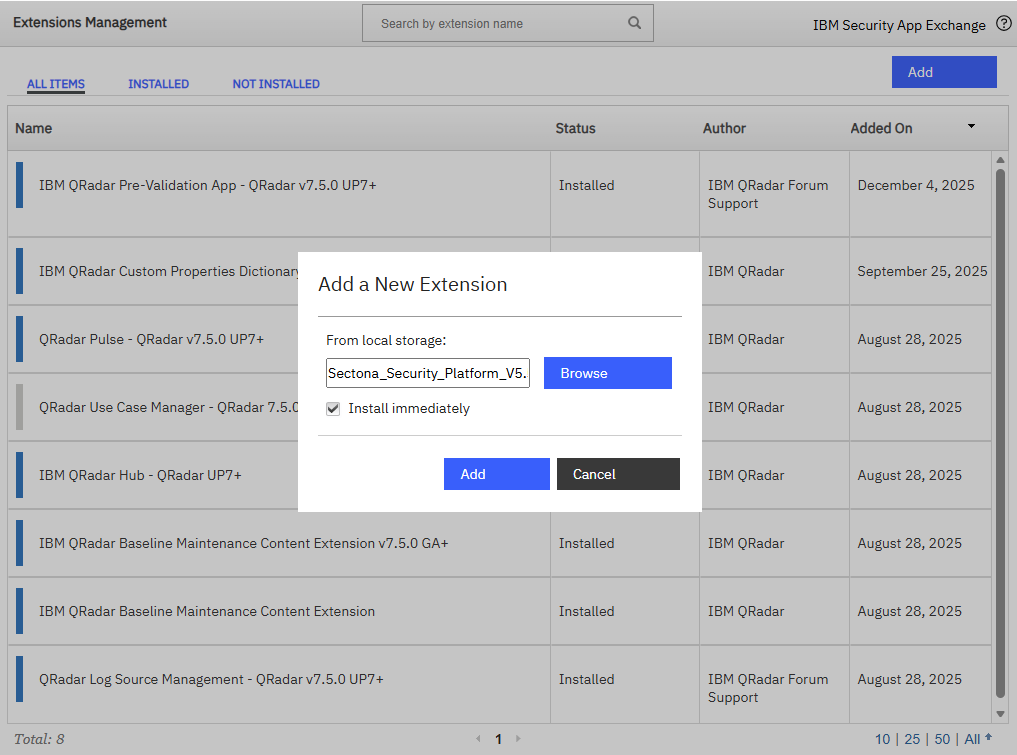
Return to the Extensions Management.
-
Click on browse to select the Sectona Security Platform extension zip file.
-
Click on Add
-
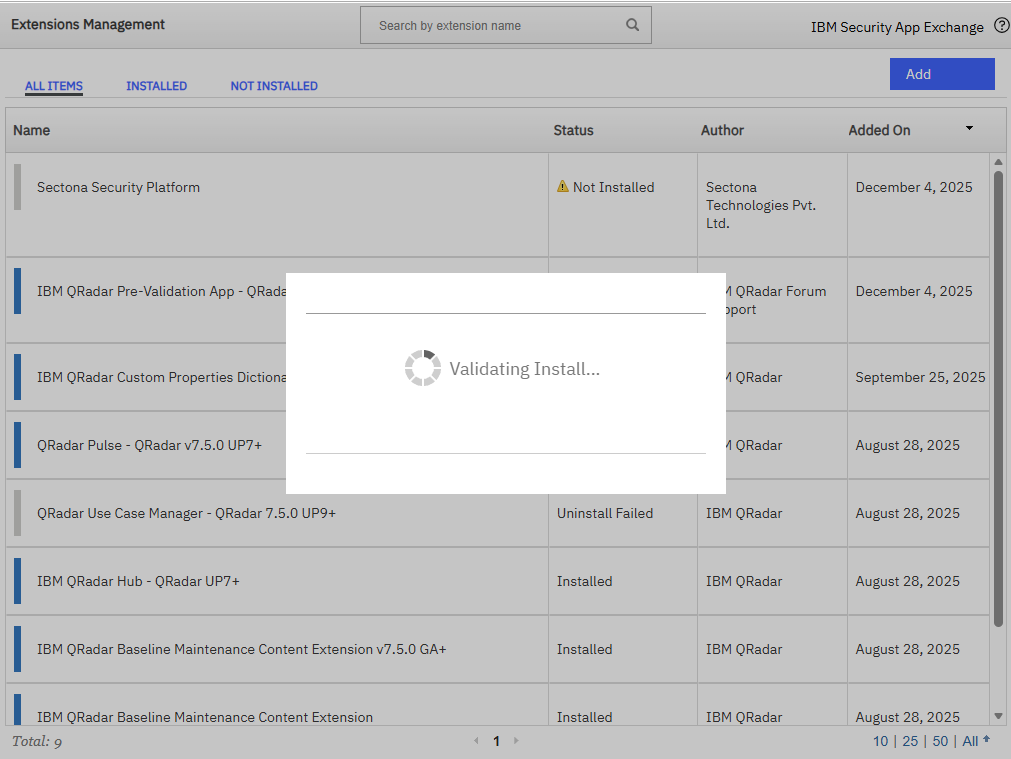
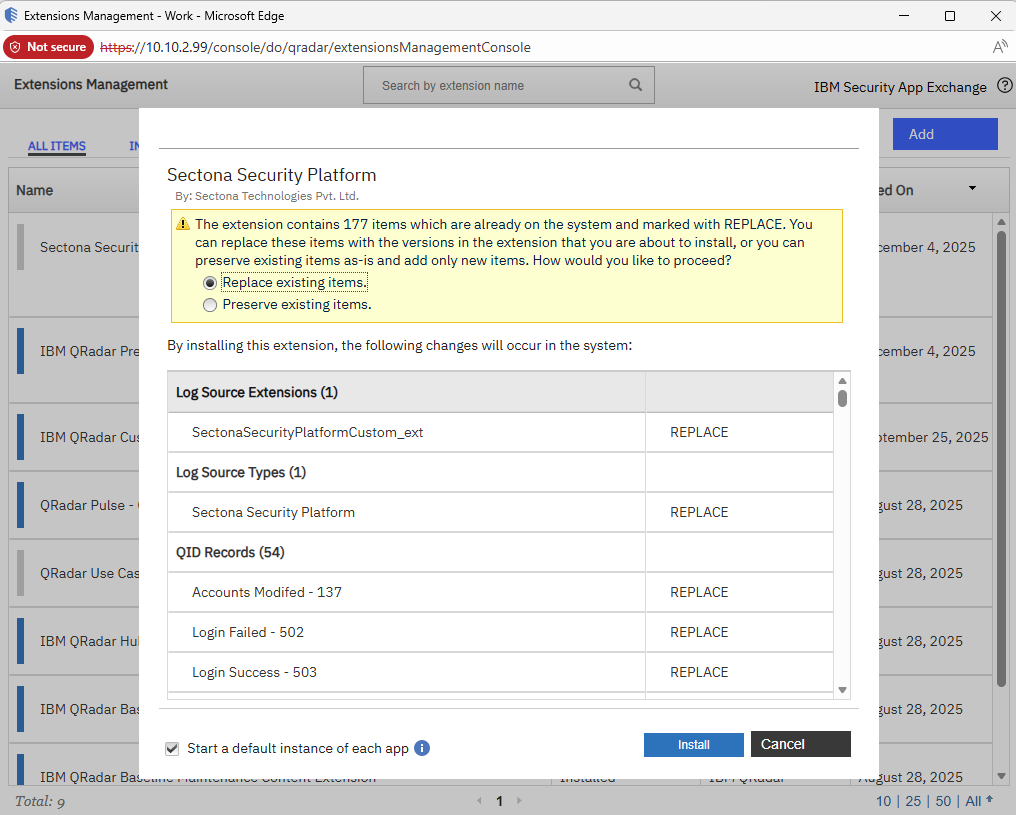
The following window displays the different components of the Sectona Security Platform. Click on Install.
-
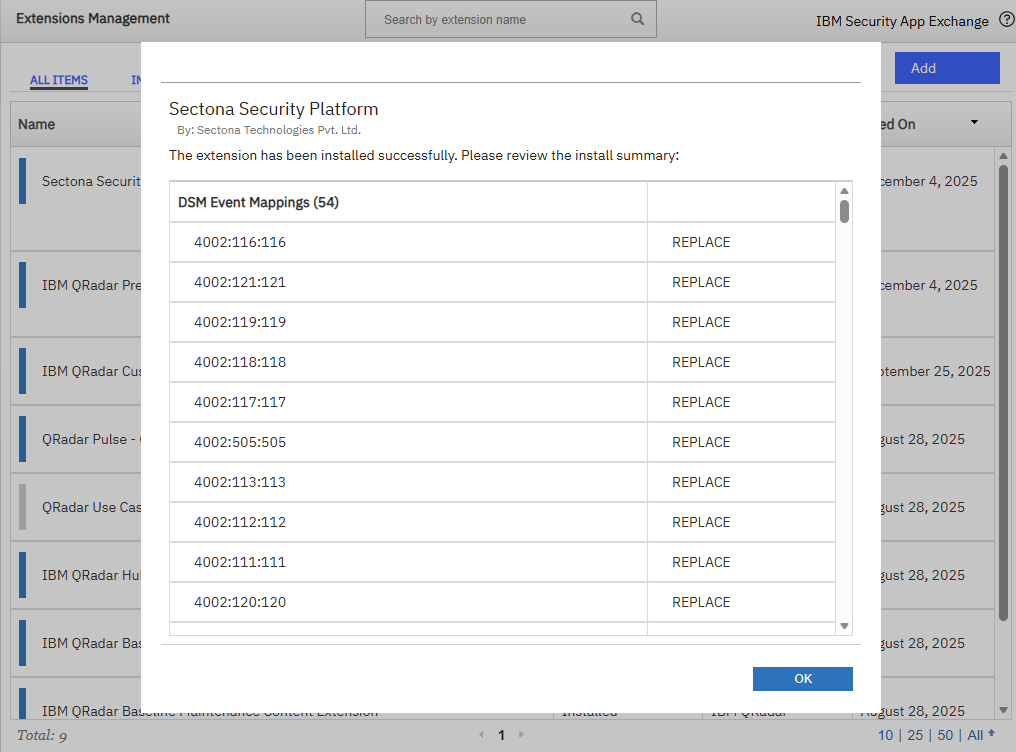
After the installation you can see the Event Mappings below. Click on OK.
Configuring Log Source
-
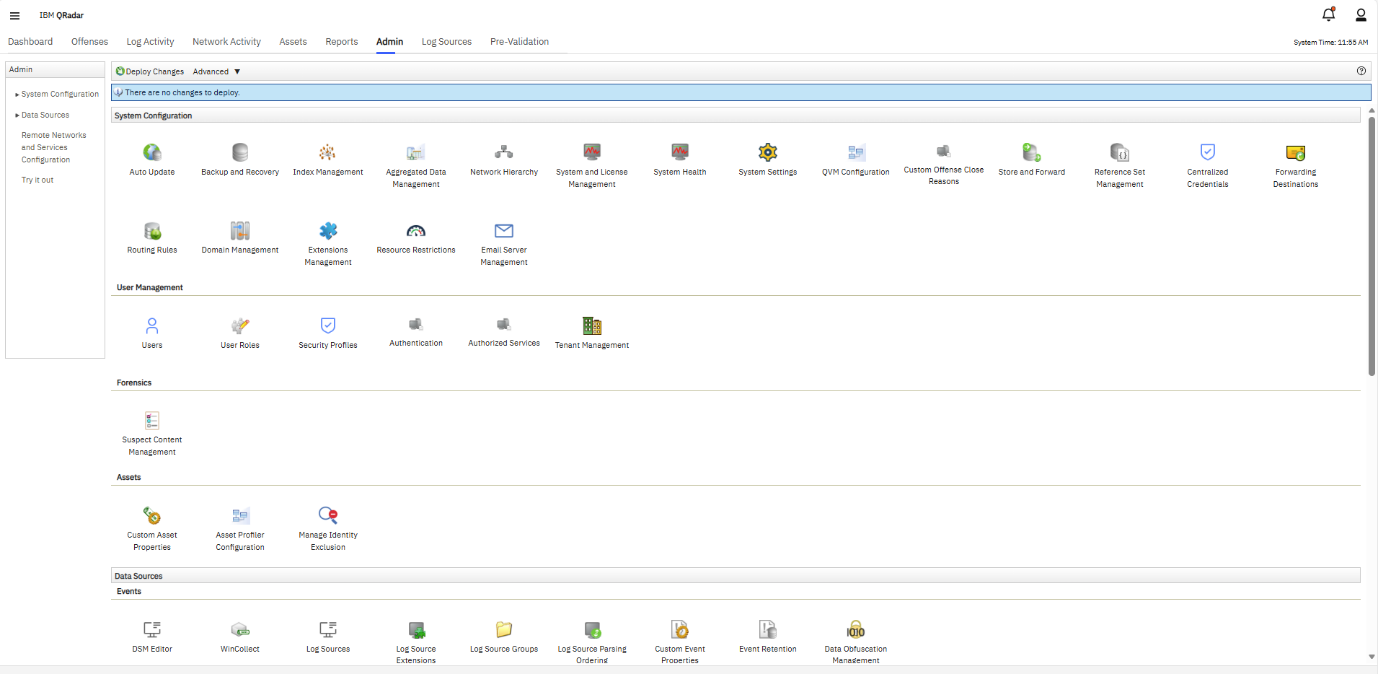
Click the Admin tab.
-
To open the app, click the Log Sources app icon.
-
Click New Log Source → Single Log Source.
-
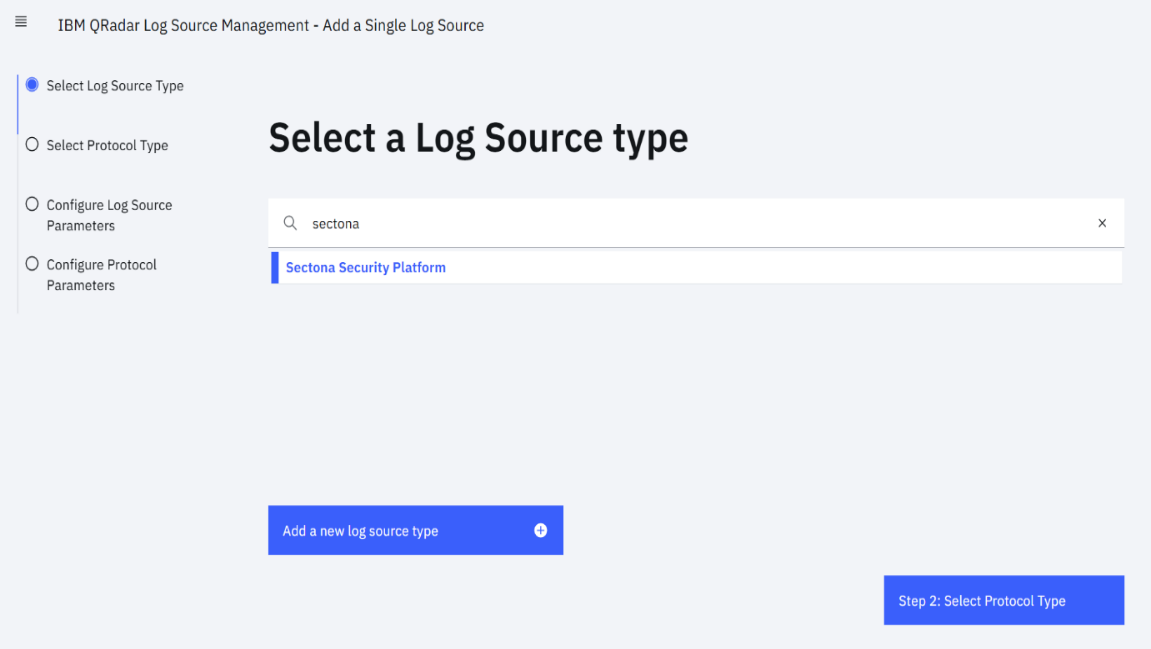
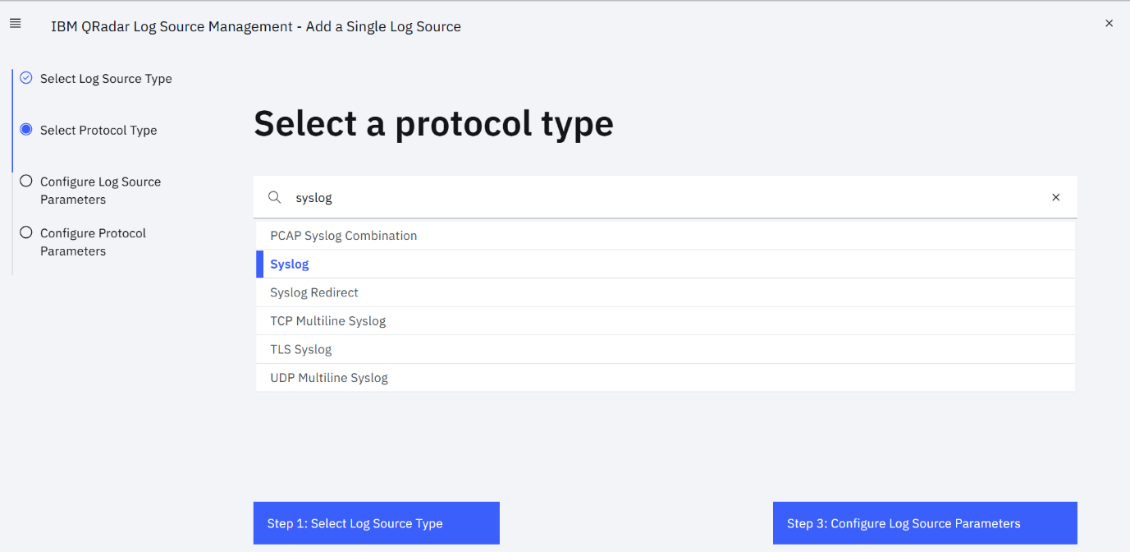
On the Select a Log Source Type page, Select Log Source Type as “Sectona Security Platform” and click Select Protocol Type as Syslog.
-
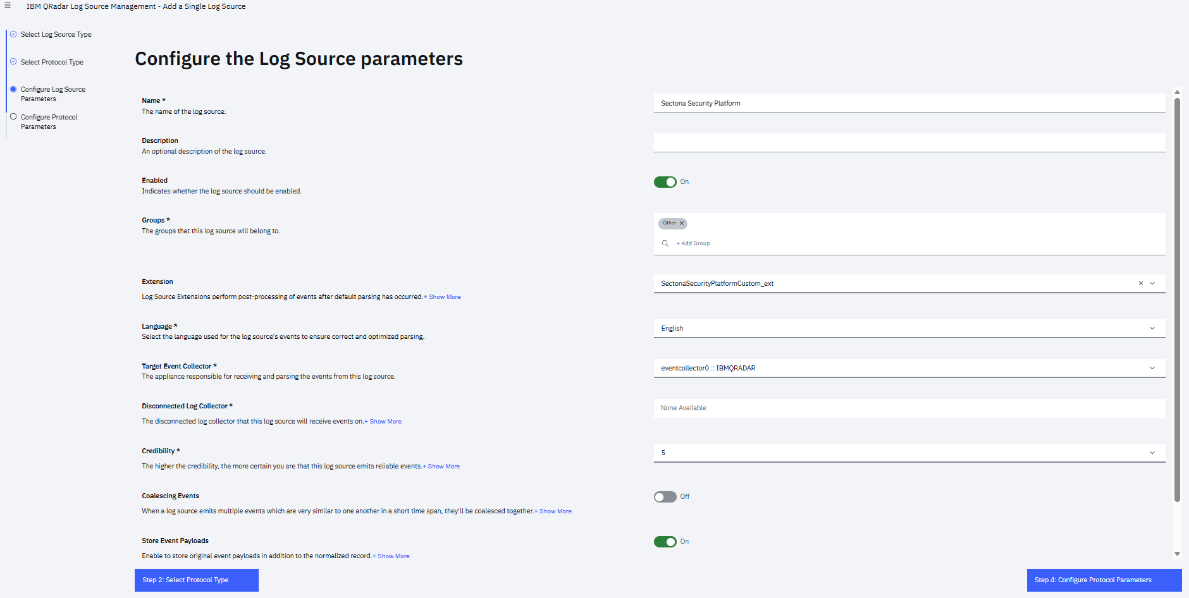
Select the SectonaSecurityPlatformCustom_ext Extension in Log source extension
-
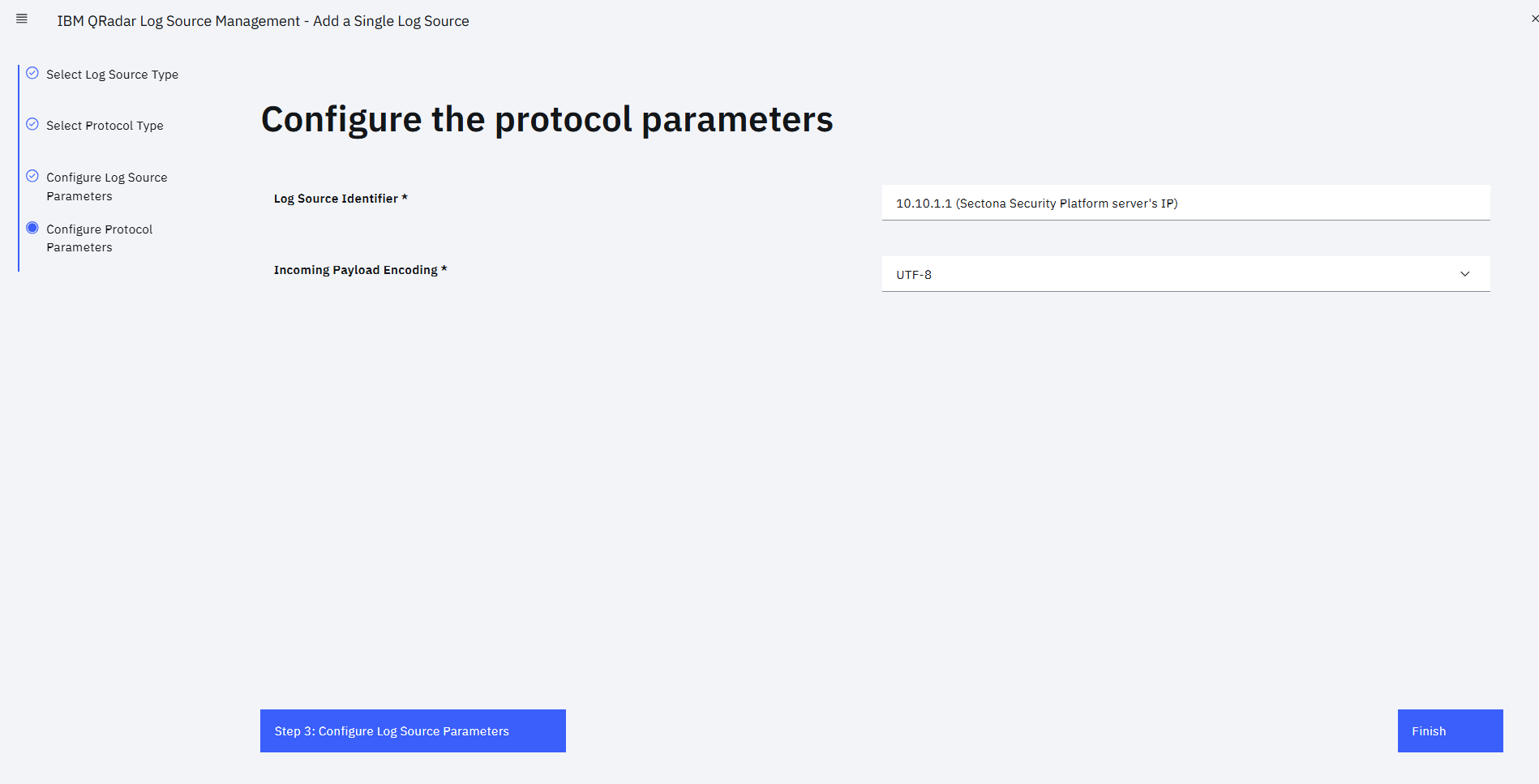
Add the IP Address or hostname of Sectona Security Platform server as Log Source Identifier. Refer the following details in the configure a new log source.
|
Log Source Name |
Sectona Security Platform |
|
Log Source Description |
Sectona Security Platform |
|
Log Source Identifier |
IP Address or Host name of Sectona Security Platform |
|
Enabled |
Check the box |
|
Credibility |
5 |
|
Target Event Collector |
eventcollector0::ibmqradar |
|
Coalescing Events |
Check the box |
|
Incoming Payload Encoding |
UTF-8 |
|
Store Event Payload |
Check the box |
|
Log Source Extension |
Select Sectona Security Platform extension from the drop-down menu |
-
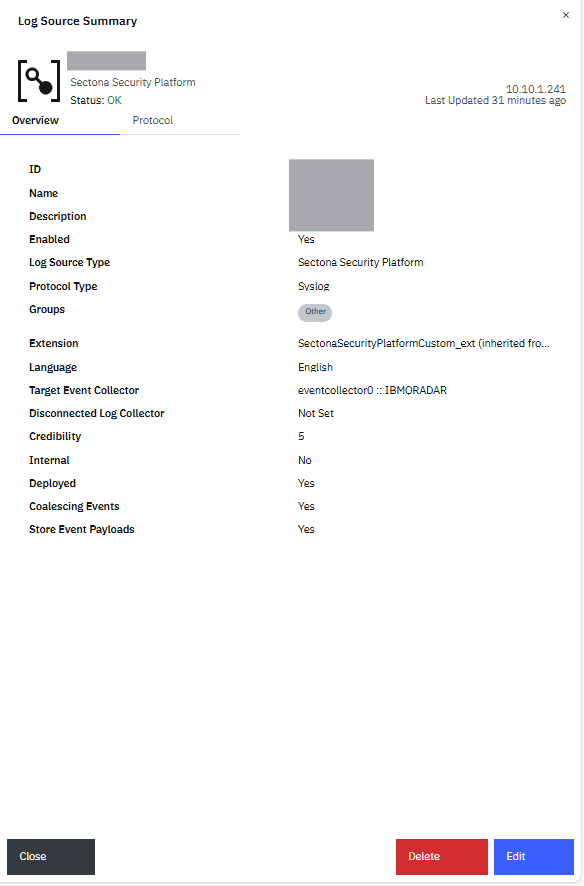
After you have completed entering the details click on Save. Details that specify the log source are displayed in the log sources tab.
Log Activity
-
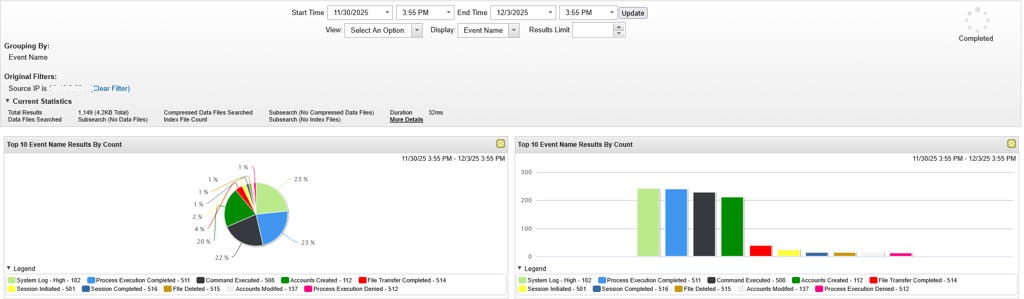
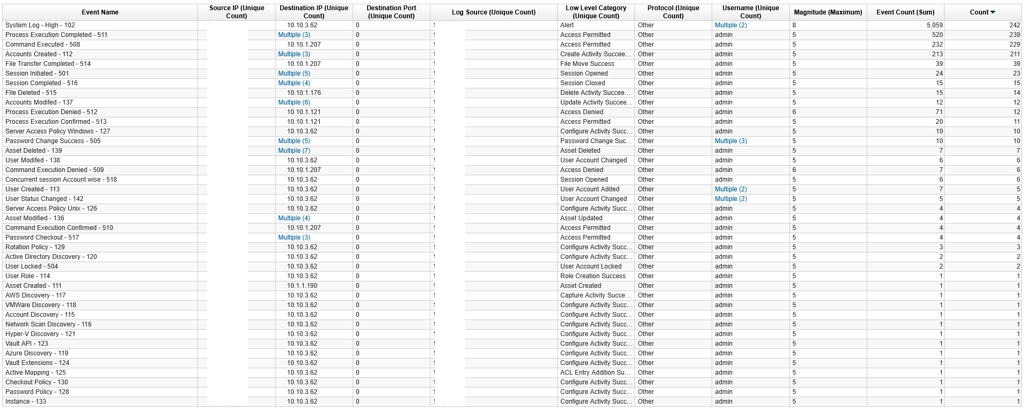
Once logs are pushed from Sectona PAM, same can be viewed with configured Log Source.
-
From the Log activity menu, filter the received logs selecting the time range and sort them as per your need.
-
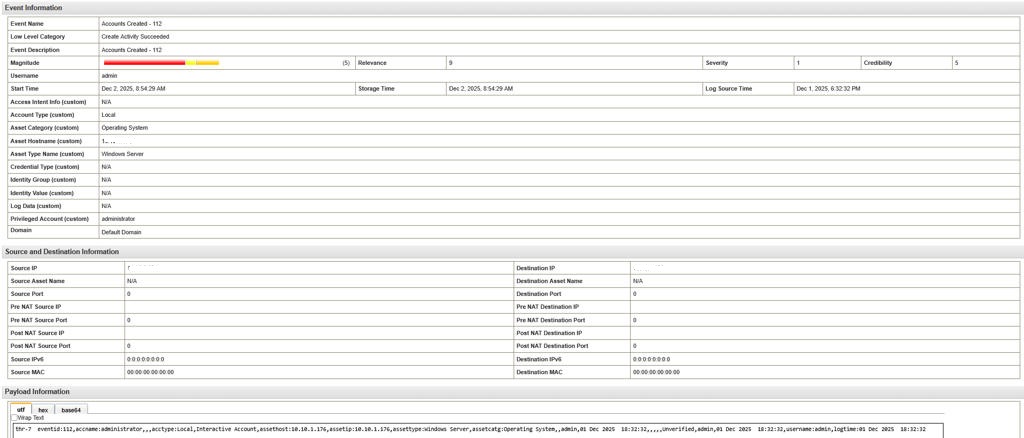
Sectona Security Platform’s Qradar extension enables extraction of important properties from the syslog.
Troubleshooting
-
If the search results did not return any activity log or shows blank data, this generally indicates that no data is available for the selected time range, or that the configured log source is not sending any information.
-
To verify this, open the Log Activity tab in IBM QRadar and switch to Real-time mode to confirm whether QRadar is receiving events from the Sectona Security Platform Log Source