
The RNA (Remote Network Access) Proxy Connector is a secure and monitored client component that enables communication across segregated security zones. It is designed for environments where direct network connectivity between the PAM Server and the Session Proxy or Web Session Proxy, or between end users and these proxy components, is restricted or unavailable.
The RNA Proxy Connector establishes and maintains a secure outbound connection to the RNA Proxy Server, allowing authorized traffic to be securely relayed between isolated network segments. By acting as a communication bridge, it enables secure access to target resources without requiring direct inbound connectivity, while maintaining network segmentation and enforcing organizational security policies.
Connection Flow

The RNA Server is deployed in a network zone accessible to end users and PAM components. The RNA Connector resides within the protected target network and maintains a secure outbound connection to the RNA Server. User sessions and management traffic are routed through this established channel, allowing secure access to target systems without requiring direct inbound connections to the target network or the RNA Connector. This architecture enhances security by maintaining network isolation and enforcing controlled communication paths.
Before You Begin
-
You have valid login details of Sectona PAM.
-
You have administrator privileges on the server you are installing the RNA Proxy components.
Installing Sectona RNA Proxy Connector
-
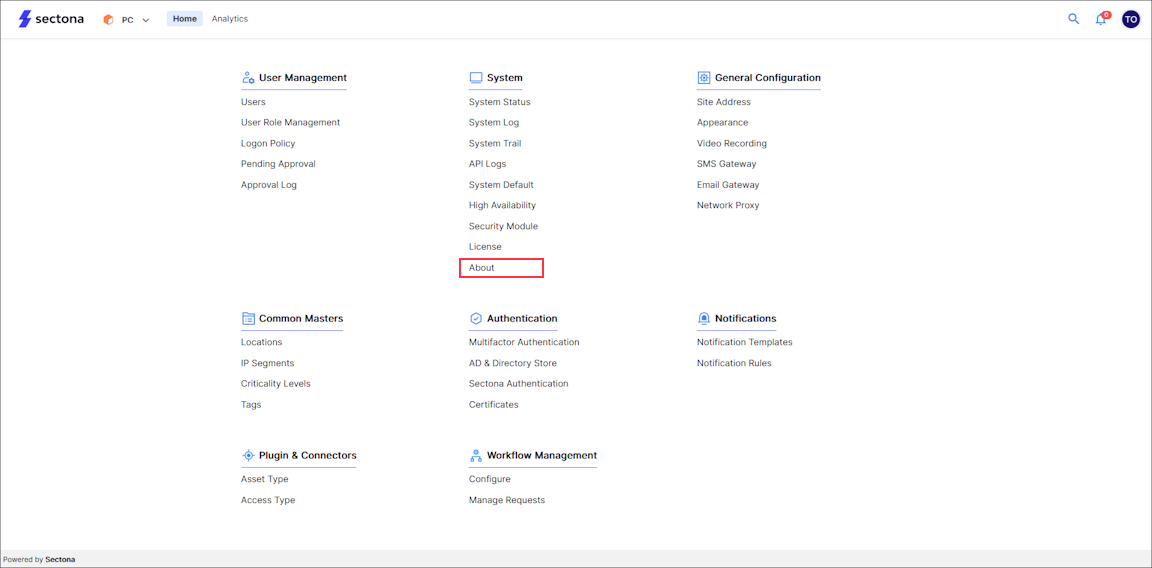
The Sectona RNA Proxy Connector can now be downloaded directly from the Platform Configuration screen.
-
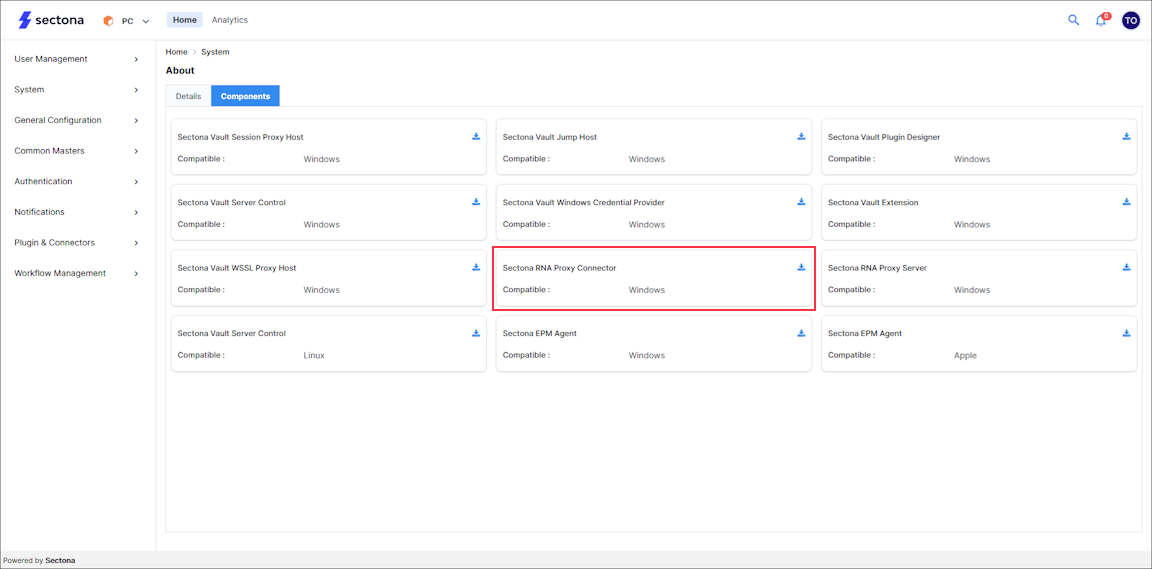
Navigate to the Components tab to view all components available for download. Locate the Sectona RNA Proxy Connector in the list and click Download to obtain the installation package.
-
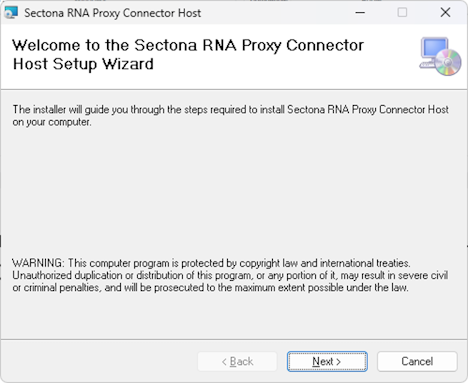
Start the Sectona RNA Proxy Connector installation package. Upon launching the installer, the Welcome page is displayed. Review the information presented and click Next to continue with the installation process.
-
Select the installation directory for the Sectona RNA Proxy Connector by clicking Browse. To view the required disk space, click Disk Cost. Choose whether to install the application for the current user (Just me) or for all users of the computer (Everyone). Once the desired options have been selected, click Next to continue.
-
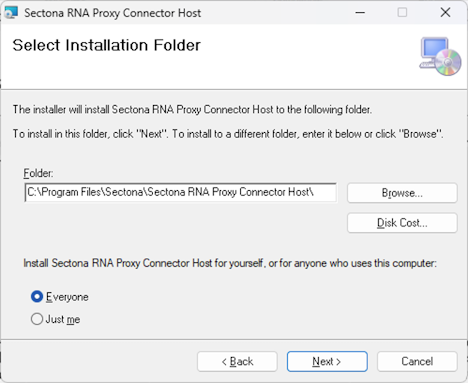
Click on Next to confirm the installation.
-
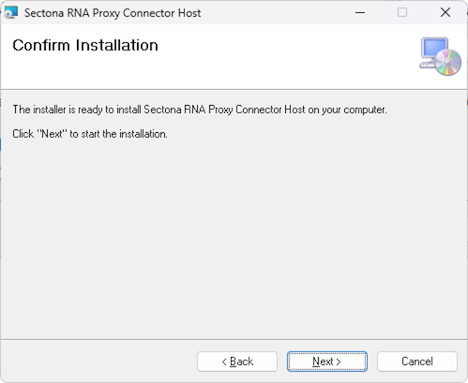
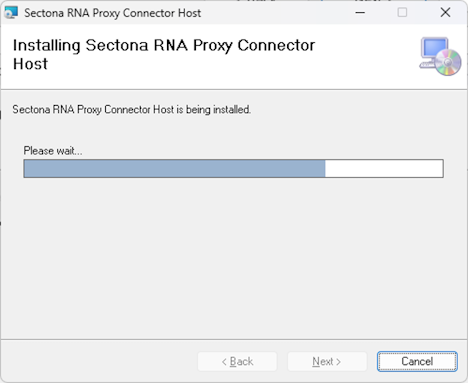
The installation process begins and may take a few moments to complete.
-
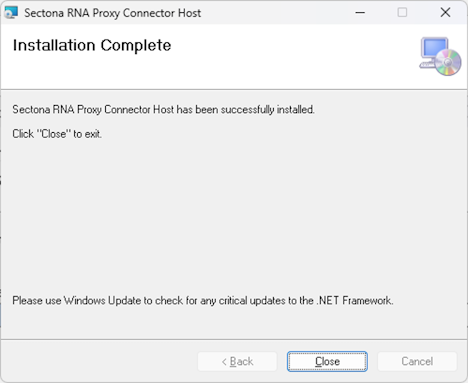
After the installation is successfully completed, click Close to exit the setup wizard.
Configure the Sectona RNA Proxy Connector to connect with the Sectona RNA Proxy Server.